To convert photo to canvas painting, the user must choose the right image and prepare it for print. This guide explains step-by-step choices and edits. It shows how to pick resolution, set color, and apply painting effects. It keeps instructions clear and direct. The reader will learn how to create a print-ready canvas from a digital photo with practical, easy steps.
Key Takeaways
- Converting a photo to canvas painting creates unique, textured art ideal for personal decor and gifting.
- Select high-resolution images with clear subjects and strong composition for the best canvas results.
- Use high-quality file formats like TIFF or JPEG at 150–300 PPI to maintain sharpness in the final print.
- Plan image cropping to allow space for canvas wrapping and position key elements using the rule of thirds for balanced composition.
- Edit photos carefully by adjusting exposure, color, and removing imperfections before applying painting effects to ensure natural results.
- Combine automated painting filters with manual retouching to achieve detailed, gallery-quality canvas paintings.
Why Convert A Photo To Canvas? Benefits And Best Uses
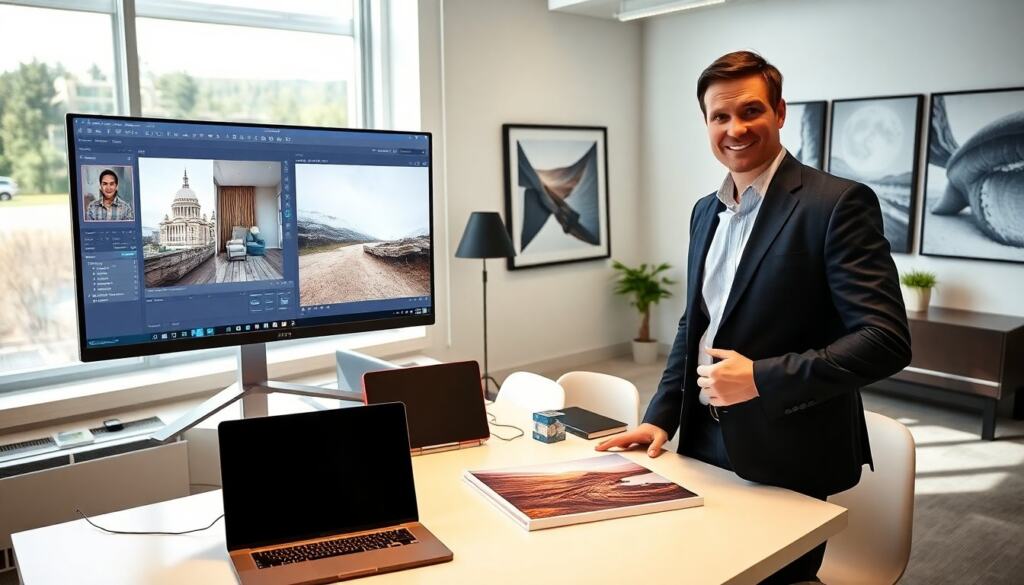
People convert photo to canvas painting to make art from personal images. A canvas print changes a photo into a display piece. It adds texture and scale. The canvas fits living rooms, offices, and gift uses. Photographers sell canvas prints to reach buyers who want ready-to-hang art. Designers use canvas pieces for mood and branding. Homeowners select canvas to highlight a moment without glass glare. Converting a photo to canvas also preserves the image in a format that lasts when printed on quality canvas and stretched over a frame.
Choosing The Right Photo: Resolution, Subject, And Composition
A good photo improves the canvas result. The user should pick an image with clear subject and strong composition. They should avoid images with low detail or heavy compression. The subject should stand out from the background. Photos with simple backgrounds scale easier to canvas size. Portraits and landscapes both work if the core subject fills the frame. The user should check lighting and focus. Bright, well-focused images translate better to simulated paint textures and large prints.
Image Resolution And File Formats To Use
They should save the final file in a high-quality format. Use TIFF or high-quality JPEG to convert photo to canvas painting without losing detail. Aim for 300 PPI at final print size for best sharpness. If the printer accepts larger files, offer 150–300 PPI depending on viewing distance. Raw files give the most editing flexibility before conversion. Avoid low-resolution screenshots. They should keep an unedited master file and a flattened export for upload to the printing service.
Composition Tips For Canvas Cropping And Scaling
They should plan crop and scale before applying effects. Leave room for the wrap area when stretching the canvas over a frame. Place key elements at least 1–2 inches inside the edge of the final size. Use the rule of thirds to position the subject for balance. When scaling up, check for visible artifacts and soften them with sharpening or noise controls. For panoramic photos, consider multi-panel canvas prints. For tight subjects, crop to eliminate distractions and strengthen the focal point.
Editing And Preparing Your Image For Painting Effects
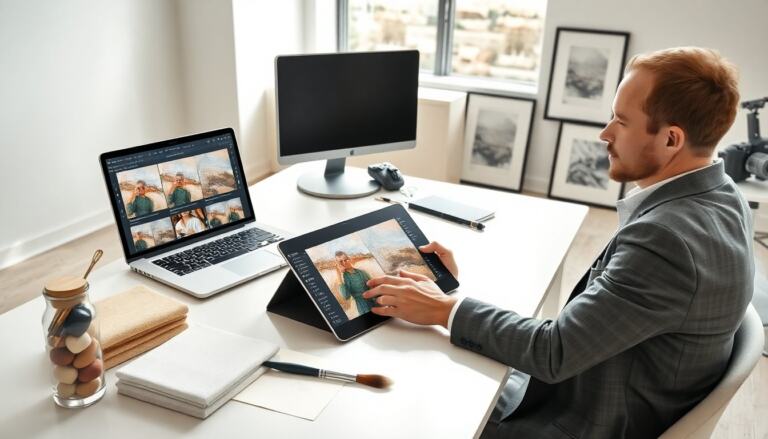
Good editing makes the painting effect look natural. The editor should correct exposure, contrast, and color first. They should remove blemishes, distractions, and sensor dust. The user should work in a non-destructive workflow with layers or adjustment files. They should test the painting effect at actual print size. The editor must ensure edges remain clean and important details remain visible after the paint filter. They should save a version before applying the final effect so they can return to the clean edit if needed.
Color Correction, Removal Of Imperfections, And Noise Reduction
They should start with white balance and exposure fixes. Adjust curves or levels to set contrast and tone. Use local edits to fix skin tones and highlights. For imperfections, use clone and healing tools on a separate layer. Apply noise reduction only where needed to avoid plastic-looking areas. After noise work, sharpen at the final print size. Convert the image to the printer color profile if the lab supplies one. These steps keep color and detail accurate when they convert photo to canvas painting and print it.
Applying Painting Filters Versus Manual Retouching
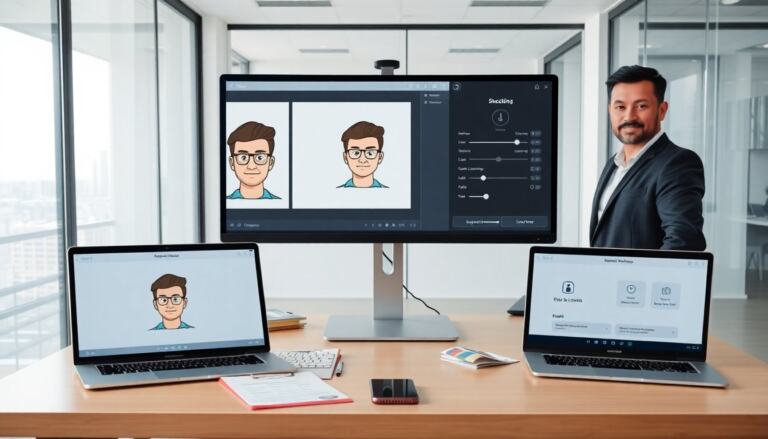
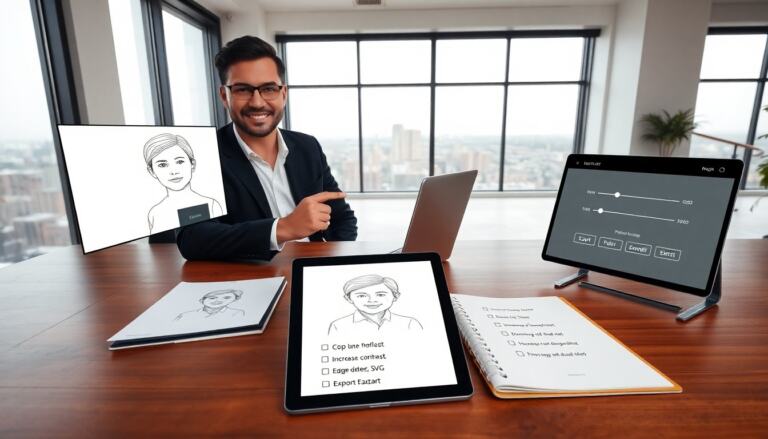
Filters speed up the process to convert photo to canvas painting. Automated painting filters add brush strokes and texture in seconds. They work well for casual projects and previews. Manual retouching gives finer control for gallery-quality prints. The artist can paint layers, blend modes, and custom brushes to keep facial detail and edge clarity. A hybrid approach often works best: apply a filter, then refine by hand. They should always test the result at print scale and make small edits to preserve likeness and mood before sending the file to print.