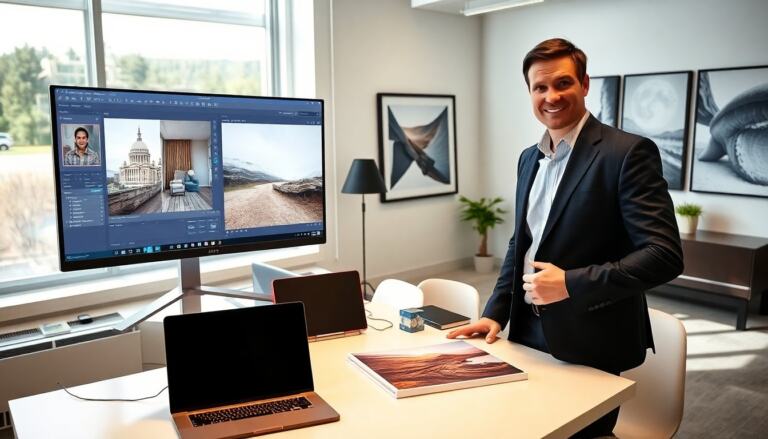
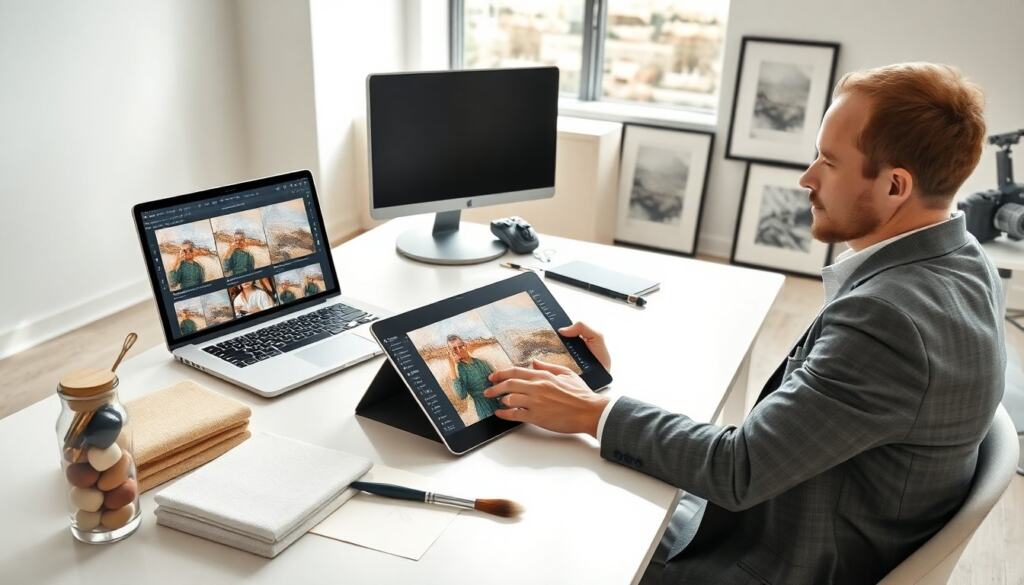
How to make a photo look like a painting starts with a clear plan. This guide shows tools, steps, and settings that produce realistic painterly results. The reader will learn style choices, photo prep, brush work, color control, and output tips. Each step uses simple actions and clear goals. The reader will follow the steps and get a print-ready image.
Key Takeaways
- Choosing a painting style early, such as oil or watercolor, guides the tools and brushes for how to make a photo look like a painting.
- Preparing the photo by adjusting exposure, contrast, and cleaning distractions is essential before applying painterly effects.
- Combining filters with manual brushwork and layer blending creates realistic texture and depth in the painted photo.
- Fine-tuning color, brushstroke direction, and texture enhances mood and mimics traditional painting techniques.
- Final output should be optimized for print or web by adjusting DPI, file formats, and choosing appropriate materials to preserve the painting effect.
Choose The Painting Style And Tools That Match Your Vision
They pick a painting style first. The choice guides the tools and settings. For an oil look they select thick brush presets and texture overlays. For watercolor they pick soft edges and paper grain. For digital impressionism they use short brush strokes and higher contrast.
They choose software next. Options include Photoshop, Procreate, Affinity Photo, and dedicated apps. They pick an app that matches their skill level. They use a tablet and stylus for brush control. They use mouse-only workflows for quick experiments.
They select reference brushes and textures. They pick brushes that mimic bristles for oils and soft wash brushes for watercolor. They download or create canvas textures and paper scans. They keep the main keyword in mind: how to make a photo look like a painting guides their style choices.
Step-By-Step Workflow: From Photo Prep To Painterly Conversion
They start by selecting a strong photo. They choose an image with clear subject, good light, and simple background. They crop to improve composition. They remove distracting elements with healing tools.
They prepare the image. They adjust exposure, contrast, and white balance. They sharpen subject details slightly. They reduce noise for clean paint application. They save a layered copy before major edits.
They apply base painterly conversion. They duplicate the image and apply a filter or neural style transfer. They lower the filter opacity to keep natural detail. They add a new layer for manual brushwork. They paint over key areas to enhance strokes and form. They check the result often and step back to assess the overall effect.
They repeat and refine. They merge visible layers for test exports. They rework problem areas on separate layers. They export test JPEGs at small size to review composition and color.
Common Techniques: Filters, Brushes, And Layer Blending Explained
They use filters to set the initial look. They try oil paint, dry brush, or artistic filters to get base texture. They keep filter strength low to avoid plastic results. They combine multiple filters on separate layers when needed.
They use brushes for detail. They pick round bristle brushes for strokes and flat brushes for edges. They vary brush size and opacity to build depth. They use pressure sensitivity to change stroke thickness when using a stylus.
They blend layers to unify texture and color. They use Normal, Multiply, Overlay, and Soft Light modes depending on purpose. They lower layer opacity to blend strokes into the photo. They add texture layers on top and set them to Overlay or Soft Light to reveal canvas grain.
They mask layers to preserve facial detail and eyes. They protect edges with layer masks. They use low-opacity erasers to soften transitions. They keep an original backup layer to return to when needed.
Fine-Tuning Color, Texture, And Brushstroke Direction
They set the mood with color adjustments. They use Curves, Levels, and Color Balance to control midtones and highlights. They push hue slightly for warm or cool moods. They avoid extreme shifts that break natural skin tones.
They refine texture carefully. They add canvas or paper grain at low opacity. They use high-pass sharpening on a merged layer to retain edge clarity. They use Gaussian blur on background areas to simulate depth of field.
They control brushstroke direction to follow form. They paint strokes along muscle or object contours. They change stroke length to suggest scale. They use short, broken strokes for impressionist looks and long, flowing strokes for classical oil looks.
They test prints on paper or proof files to see how texture and color translate. They adjust saturation and contrast after a proof review.
Finishing Touches, Output Options, And Printing Advice
They finalize the image by flattening copies for export while keeping editable masters. They run a final noise reduction and do a small sharpen for print. They check image size and set DPI to 300 for fine art prints.
They choose file formats wisely. They save masters as PSD or TIFF. They export JPEG or PNG for web use. They embed color profiles for consistent color across devices and printers.
They pick print materials to match the painting look. They choose textured canvas for oil effects and matte fine art paper for watercolor effects. They request a print proof if using a pro lab. They adjust brightness and contrast based on the proof.
They display the work with simple framing or visible canvas edges to preserve the painterly feel. They iterate on the workflow as they gain experience on how to make a photo look like a painting.