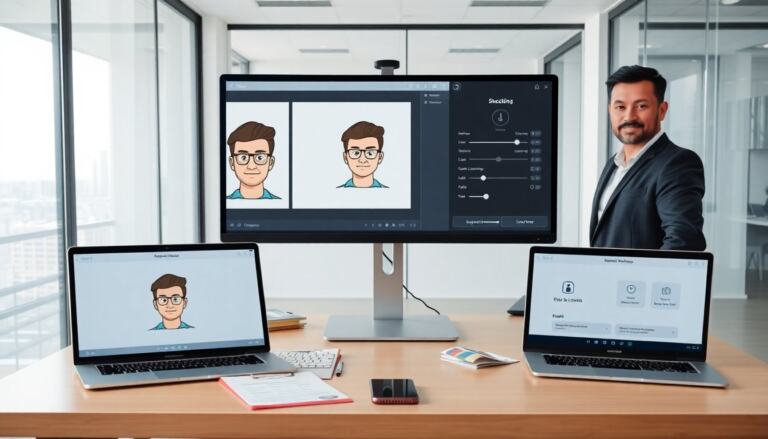
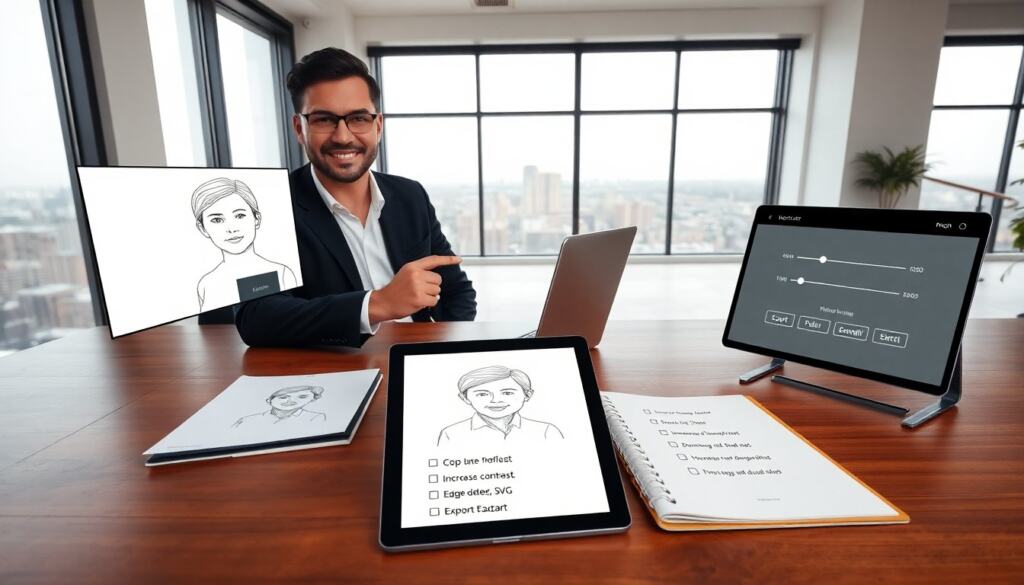
Users who want to turn photo into line drawing online free can start within minutes. This guide shows how common converters work, which free tools perform best, and clear tips to get printable line art. The article uses simple steps and direct advice. Readers will learn practical actions they can use right away.
Key Takeaways
- Turning photo into line drawing online free is easy using edge detection filters that highlight contrasts and simplify images into bold lines.
- Free tools like Photopea and GIMP allow users to convert photos to line drawings by following simple steps such as duplicating layers and applying edge filters.
- Increasing contrast and using plain backgrounds help produce cleaner and more printable line drawings suitable for coloring or art projects.
- Exporting line drawings as SVG files through vectorizers ensures scalable, high-quality prints without pixelation for large formats.
- Adjusting settings like threshold and smoothing can reduce noise and improve facial detail, while test-printing helps verify line clarity and stroke weight before final use.
How Online Line-Drawing Converters Work — Filters, Edge Detection, And Vectorization
Online tools convert photos to line drawings by finding clear edges and simplifying tones. The converter reads the image pixels. The software scores contrast and highlights areas with strong brightness change. The edge-detection filter marks those pixel changes as lines. The tool then traces those lines and removes color information.
Some converters apply a threshold filter. The filter sets a brightness cutoff. Pixels brighter than the cutoff become white. Pixels darker than the cutoff become black. This action produces bold, poster-style outlines. Other converters use a blend of filters. They apply blur first to remove noise. Then they run edge detection to capture the main contours.
Vectorization converts raster edges into clean paths. The vectorizer traces the black-and-white output and creates scalable lines. The vector output lets the user resize the drawing without pixelation. The conversion process often includes smoothing to reduce jagged strokes. The smoothing algorithm averages nearby points and keeps major corners.
Some advanced services use machine learning. The model learns from pairs of photos and hand-drawn sketches. The model predicts likely sketch lines and weights edges by importance. The user can usually adjust strength, detail, and smoothing sliders. This control lets the user keep facial detail or simplify a background.
A converter that aims to turn photo into line drawing online free must balance speed and quality. Free services often limit resolution or add watermarks. Paid tiers usually unlock high-resolution vector export, custom thresholds, and batch processing. The user should test several tools to find the right balance for the intended print or digital use.
Best Free Tools And Step-By-Step Walkthroughs To Convert Your Photo
Tool 1: Photopea (web app). Photopea offers free raster edits and filters. The user uploads the photo. The user duplicates the background layer. The user applies Filter > Stylize > Find Edges. The user inverts the layer if needed. The user sets Blend Mode to Multiply and adds Levels to increase contrast. The user exports as PNG or SVG via File > Export As.
Tool 2: GIMP (free desktop). The user opens the image. The user duplicates the layer. The user chooses Colors > Desaturate. The user applies Filters > Edge-Detect > Edge. The user adjusts Threshold under Colors > Threshold. The user cleans stray pixels with the eraser. The user exports as PNG or PDF.
Tool 3: Vectorizer.online (free vector export). The user uploads a cleaned black-and-white PNG. The site processes the image and returns an SVG. The user downloads the SVG and opens it in Inkscape to tweak stroke width. The user saves the file as PDF for print.
Tool 4: Mobile apps (Snapseed, PicsArt). The user loads the photo. The user selects a black-and-white or sketch filter. The user reduces saturation and increases contrast. The user saves the image and uses a web vectorizer if the user needs scalable lines.
Quick step checklist to turn photo into line drawing online free:
- Crop the photo to focus on the subject.
- Increase contrast to make edges clear.
- Desaturate the image if the tool needs black-and-white input.
- Apply edge detection or sketch filter.
- Adjust threshold and smoothing to remove noise.
- Export as PNG or SVG, depending on print needs.
The user should keep the original photo. The user should test multiple export settings. The user should compare PNG and SVG results before final use.
Practical Tips For Cleaner, Printable Line Drawings And Common Troubleshooting
Tip 1: Start with a clear photo. The tool finds edges more accurately when the subject stands out from the background. Tip 2: Use plain backgrounds for portraits. Solid backgrounds reduce stray lines and make the output cleaner.
Tip 3: Raise contrast before edge detection. The user opens Levels or Curves and moves the black and white points inward. This step brings out the contours. Tip 4: Remove small details for coloring pages. The user applies a slight Gaussian blur to smooth texture. The blur reduces fine noise that turns into distracting lines.
Tip 5: Clean the image with a white brush. The user removes stray dark pixels and strengthens key lines. This step helps when the user plans to print the drawing as a coloring sheet. Tip 6: Choose vector export for large prints. The user converts to SVG to keep the lines sharp at any size.
Troubleshooting: If the output looks grainy, the user should lower edge detection strength or increase blur. If faces look too harsh, the user should reduce threshold and keep more midtones. If the tool adds a watermark, the user should try another free converter or export at a lower resolution that some services allow without watermarks.
Troubleshooting: If the SVG has too many nodes, the user should run a path simplification tool in Inkscape. The user should select Path > Simplify and then review corners manually. If the lines are too thin for print, the user should open the SVG in a vector editor and increase stroke width.
Tip 7: Test-print at final size. The user prints a small sample to check line weight and clarity. The user adjusts stroke thickness or contrast based on that sample. The user keeps an edited master file so the user can export again for different paper sizes.