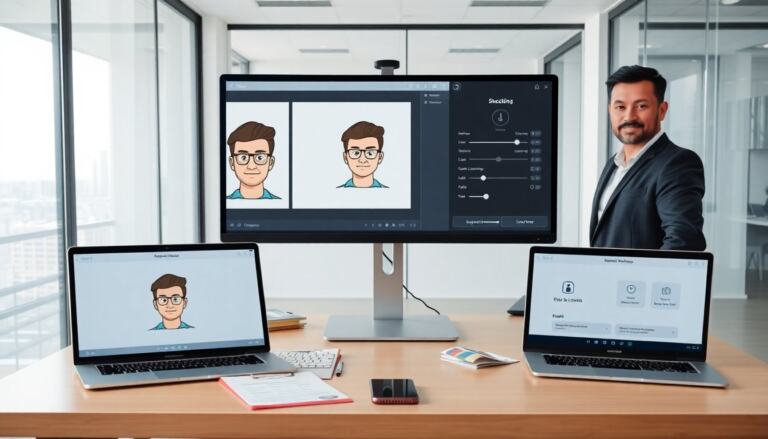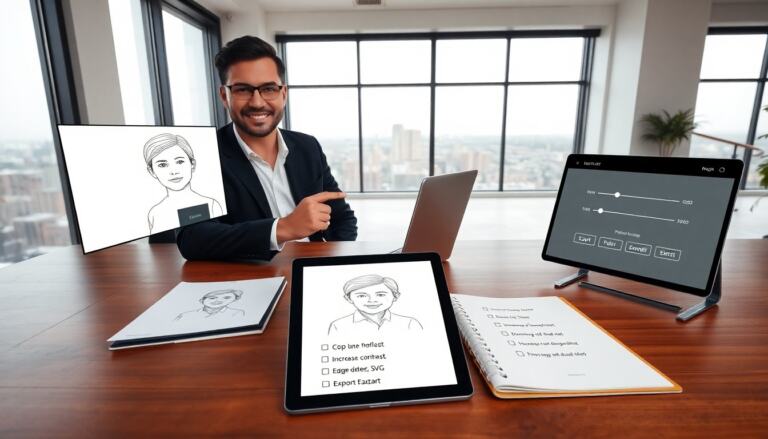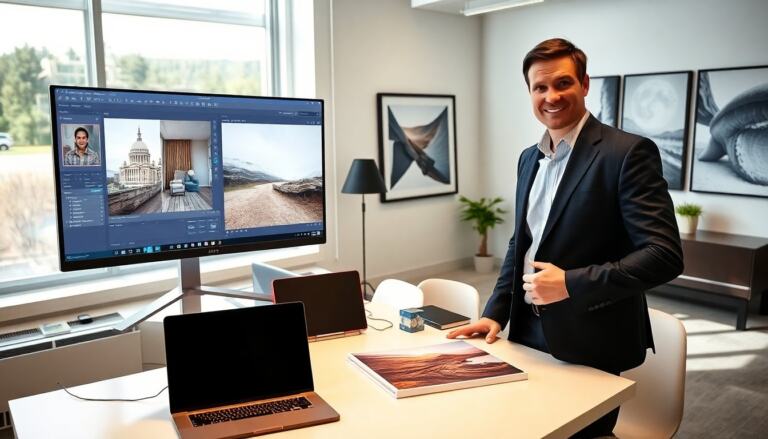

A glitch effect photo draws attention by breaking visual rules. The reader will learn what the effect is, which tools to use, and how to make it. The guide will show a simple Photoshop method and quick online shortcuts. It will also list creative variations and use cases. The steps stay clear and direct for fast results.
Key Takeaways
- A glitch effect photo creates digital distortion by mimicking screen errors and color shifts, adding a dynamic and retro-futuristic vibe.
- Choosing the right tool—mobile apps for quick edits or desktop software like Photoshop for detailed control—depends on your project needs and skill level.
- Creating a glitch effect in Photoshop involves duplicating layers, shifting color channels, applying blend modes, and adding noise for texture.
- Free online glitch filters offer a fast and easy way to produce glitch effect photos in under five minutes without software installation.
- Different glitch styles, from hard RGB splits to VHS static, serve varied creative purposes based on the message and platform.
- Using the glitch effect photo strategically can enhance marketing, photography, and design projects by attracting attention and conveying a tech-savvy aesthetic.
What Is A Glitch Effect Photo And Why Use It
A glitch effect photo shows digital distortion as a visual style. The effect copies screen errors, color shifts, and pixel splits. Artists use it to add tension, motion, or retro-future mood. Marketers use it to stop scroll and increase clicks. Photographers use it to contrast clean portraits with rough texture. Designers use it in posters and social posts to signal tech or disruption. The effect stays flexible and fast to produce.
Tools And Apps For Making Glitch Photos
A user can pick a mobile app, desktop program, or web tool to make a glitch effect photo. Mobile apps give quick presets and one-tap filters. Desktop software gives layer control and precise edits. Web tools give free, fast results without install. The choice depends on time, budget, and control. The next subheading compares mobile and desktop options.
Mobile Apps Versus Desktop Software: Which To Choose
Mobile apps suit fast edits and social sharing. They give sliders, animated glitches, and RGB split presets. A user can produce a post-ready glitch effect photo in minutes. Desktop software suits custom work and high-res files. A user can use layers, masks, and blend modes to refine the effect. Professionals pick desktop when they need print quality or subtle control. Beginners pick mobile for speed.
Step-By-Step: Create A Glitch Effect In Photoshop (Or Equivalent)
Open the photo in Photoshop or equivalent. Duplicate the background layer twice. Select the top layer and open the Channels panel. Shift the red channel horizontally by a few pixels. Shift the blue channel in the opposite direction. Set the top layer blend mode to Screen or Lighten and lower opacity to taste. Add a mask and paint where the effect should hide. Use the Rectangular Marquee tool to cut horizontal bands. Move bands slightly to create data-shear. Add a Noise filter and reduce opacity for grit. Export as PNG or high-quality JPG. The user will now have a clean glitch effect photo with editable layers.
Quick Method Using Free Online Tools And Filters
Open a trusted free web editor. Upload the photo. Choose a glitch or RGB split filter. Apply the filter and adjust intensity. Use a shake or scanline overlay if the tool offers it. Crop or resize for the final platform. Download the file and check resolution. If the photo needs more control, repeat with a different preset or stack filters. This quick path creates a usable glitch effect photo in under five minutes.
Creative Variations And When To Use Each Style
A hard RGB split suits music, cyberpunk, and high-energy ads. A subtle chromatic shift suits editorial portraits and album covers. A banded data-shear suits posters, film titles, and promos. A VHS static look suits retro themes and nostalgia posts. An animated GIF glitch suits social stories and reels. A blended double-exposure glitch suits fashion and conceptual art. A designer or creator should match the variation to the message, platform, and file needs.