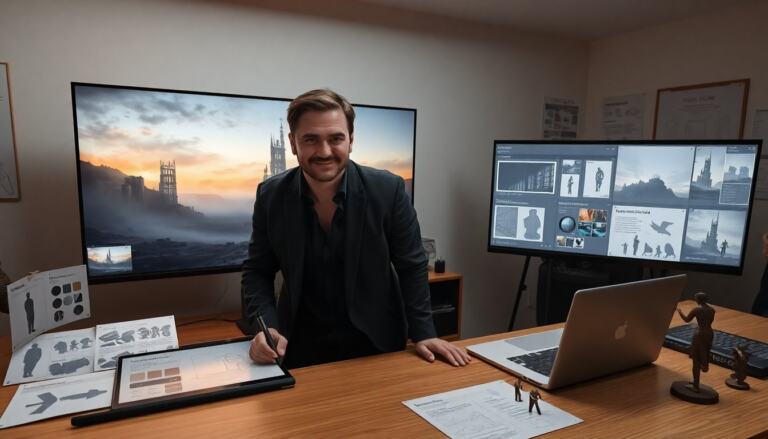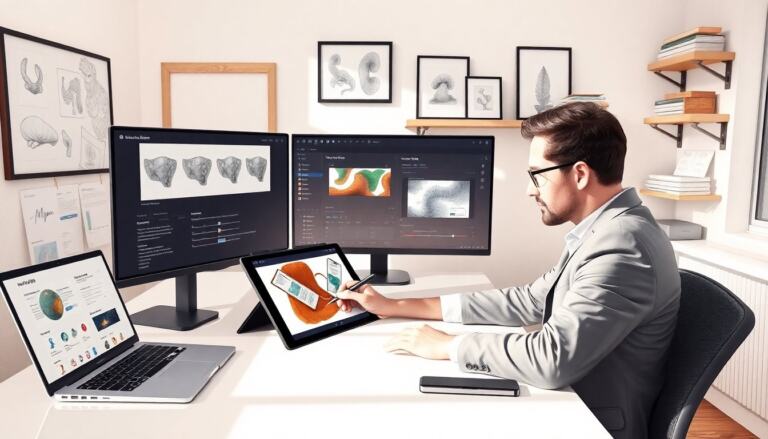

This digital painting tutorial shows clear, step-by-step guidance for beginners and intermediates looking to build reliable habits and solve common problems. It expands beyond a checklist by offering actionable routines, troubleshooting advice, and example workflows you can replicate: daily warmups, a four-stage painting pipeline, and quick checks that prevent wasted work. Read through each section to learn not only what to do—tools, setup, and core techniques—but also why each choice matters and how to adapt it to your subject, whether portrait, environment, or concept art.
Key Takeaways
- This digital painting tutorial guides beginners and intermediates through essential tools, including tablets and software like Krita and Photoshop, focusing on three primary brushes for effective painting.
- Setting up a clean canvas with organized layers and practical workflows, including shortcuts and non-destructive edits, speeds up digital painting progress.
- Strong composition and value control are crucial, with emphasis on limited color palettes, clear thumbnails, and focal point contrast to enhance image readability.
- Proper lighting techniques, depth cues, and texture application bring realism and interest, using main and secondary lights plus atmospheric perspective.
- Exporting final work involves creating multiple file types for print and web, ensuring sharpness and quality consistent with professional standards.
Essential Tools, Software, And Brush Basics
Start this digital painting tutorial by choosing tools that match the artist’s goals and budget. If you paint frequently, a pressure-sensitive pen tablet or display (Wacom-style, XP-Pen, or similar) will improve line control and natural brush behavior—trackpads can work for quick studies but limit pressure dynamics. Pick software that supports layers, masks, and customizable brushes; popular choices include Krita, Clip Studio Paint, Procreate, and Photoshop, each with strengths for different tasks (animation frames, comic lettering, or painterly blending).
Spend time with the default brushes, then curate a compact kit: a hard-edge brush for crisp silhouettes and line work, a soft blender for smooth transitions, and a texture (or stamp) brush for skin, fabric, or foliage detail. Keep the initial brush set to these three types to reduce decision fatigue; refine size, opacity, and flow presets as you work. Learn to save brush presets and adjust pressure curves so pen tilt, pressure, and speed produce predictable strokes. Practice simple exercises—controlled strokes, pressure ramps, and layered hatching—to calibrate feel before starting a full piece.
Setting Up Canvas, Layers, And Workflow
Organize your files and canvas before you paint to avoid time-consuming rework. Choose a canvas size appropriate to the final use: larger for print, smaller for web thumbnails, and always work at a resolution that keeps important details editable. Create a consistent folder structure (sketches, finals, exports) and name files with version numbers or dates so you can roll back to earlier stages when needed.
Within the file, establish a predictable layer stack: a quick thumbnail sketch layer, a cleaned-up line or silhouette layer (if needed), a block-in layer for large shapes and colors, and separate layers for midtones, details, and effects. Name layers clearly and lock base layers that should not be altered. Use clipping masks, layer groups, and adjustment layers to keep edits non-destructive—this allows you to experiment with color and contrast without degrading the original paint. Assign a handful of keyboard shortcuts (brush size, undo, eyedropper, opacity toggle) and customize your interface so common tools are a single keypress away. Finally, adopt a versioning habit: save incremental copies (v1, v2, v3) and export an occasional flattened PNG as a stepping-stone for feedback or online posting.
Core Painting Techniques: Composition, Values, And Color
This digital painting tutorial teaches core skills that make images read quickly and emotionally. Start with thumbnails—small, fast sketches that explore silhouette, negative space, and leading lines. Produce several variations and choose the strongest composition before committing pixels; this is where most visual problems are solved cheaply. When moving to values, limit yourself initially to three to five tonal stops: dark anchor, midtones, key light, rim/highlight, and highlight accents. Block in these values early to test legibility at a glance.
Color decisions should support the composition and mood. Work with a limited palette to maintain harmony: pick a dominant color, a secondary color, and an accent. Use local color (the object’s inherent hue) combined with global lighting adjustments—cool shadows, warm key lights—to unify the scene. Regularly desaturate the image to check value relationships and use quick overlays (soft light or color layers) to nudge temperature without repainting. When establishing a focal point, increase contrast, add a small warm highlight, or simplify nearby detail so the eye is naturally drawn there.
Light, Depth, Textures, And Final Export
Lighting defines form—place a main light source to sculpt volumes and create readable shapes. Think in terms of primary light for form, secondary lights for interest, and rim lights for separation from complex backgrounds. Cast shadows and contact shadows ground objects; avoid floating elements by ensuring shadow direction, softness, and strength are consistent. To imply depth, apply atmospheric perspective: reduce contrast and saturations for distant planes, and warm up front elements while cooling distant ones.
Textures add tactile detail without overworking surfaces. Use textured brushes sparingly for focal areas and stamps or procedural noise for background elements to avoid uniform digital smoothness. Mask textures so they appear where needed—creases, worn edges, fabric—but not across faces or reflective surfaces unless intentional. Before finishing, flatten a copy and view the image at target sizes (thumbnail, web, print preview) to check read-through and sharpness. Export a layered PSD or TIFF for archiving and editable masters, and create resized, optimized PNG/JPEG exports for web sharing. Keep a checklist for final export: check color profile, resolution, edge sharpness, and metadata so your finished piece looks consistent across platforms.