A drawing tablet for PC gives an artist direct control over digital work. It replaces mouse clicks with pen strokes. The device connects to a computer and maps pen movement to the screen. Artists gain pressure sensitivity, tilt response, and faster workflows. This guide helps readers compare options, read key specs, and pick a tablet that fits skill and budget.
Key Takeaways
- A drawing tablet for PC offers unmatched precision and pressure sensitivity, enhancing digital art, photo editing, and design workflows.
- Comparing essential specs like resolution, pressure sensitivity, active area size, and latency is crucial when selecting a drawing tablet for PC.
- Beginners should opt for affordable, easy-to-use tablets with bundled software, while professionals need high-resolution pen displays with advanced features and low latency.
- Checking driver support, OS compatibility, and software support ensures smooth performance and avoids workflow interruptions.
- Testing tablet feel in person or reading recent reviews helps choose the right drawing tablet for PC that fits individual skill level and budget.
- Balancing tablet features with PC capabilities and daily needs ensures good value and improved creative output.
Why Use A Drawing Tablet With Your PC? Benefits For Digital Art, Photo Editing, And Design
A drawing tablet for PC gives precision that a mouse cannot match. It lets an artist draw lines with natural pressure and angle. Photo editors use the pen to mask, dodge, and clone with fine control. Designers sketch layouts and annotate files faster than with a mouse. A tablet reduces repetitive wrist motion during long sessions. It also speeds up tasks that need varied brush sizes and opacity. For many, the tablet improves line quality and reduces the time spent correcting strokes. They can switch between pen and shortcut keys to keep flow steady. Users who work on PC apps like Photoshop, Clip Studio, or Illustrator see immediate benefits. A drawing tablet for PC often supports high-resolution displays, which helps when details matter. Many tablets accept custom buttons and touch gestures. That feature cuts menu hunting and keeps creative momentum.
Beyond the basics, a drawing tablet changes how you approach a project. Concept artists can thumbnail faster, iterators can block in color quickly, and retouchers can work at a pixel level without awkward mouse movements. The pen’s tilt and pressure let brush engines respond like traditional media, making natural brush strokes and shading more achievable. For collaborative work, tablets make markup and annotation simpler during review sessions. The overall result is a shorter feedback loop and cleaner final assets.
While buying a tablet, consider how it will integrate with your existing PC setup. Some users pair a tablet with multiple monitors, mapping the active area to a single display or spanning it across screens. Others prefer a dedicated pen display that acts as a secondary monitor for direct on-screen drawing. Either way, the right tablet significantly improves precision, speed, and comfort for daily creative tasks.
Essential Specs To Compare When Buying: Resolution, Pressure, Size, And Latency
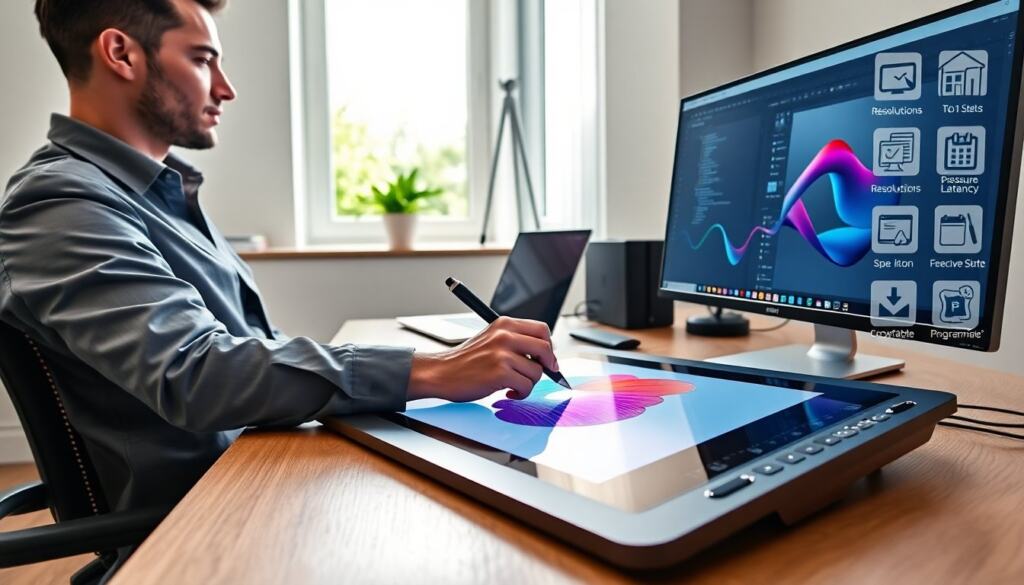
Buyers should compare core specs when choosing a drawing tablet for PC. Resolution measures how many lines the tablet reports per inch. Higher resolution gives smoother curves and better tracking. Pressure sensitivity shows how many levels the pen reports. More levels let an artist control line thickness and opacity with subtlety. Active area size changes how much hand movement the user needs. Larger areas suit broad strokes and multi-monitor setups. Latency tells how fast the pen appears on screen after movement. Lower latency keeps the drawing feel immediate and accurate. Reported specs matter, but real-world tests reveal how they perform with the user’s PC. They should also check driver support and OS compatibility. Good drivers reduce dropped strokes and mapping errors. Battery-free pens avoid runouts and keep work sessions steady. Finally, buyers should confirm that the tablet supports the favorite drawing software. Compatibility avoids surprise limitations during projects.
Other important but sometimes overlooked specs include report rate (how frequently the pen position is sent to the PC), pen tilt recognition, and the surface finish of the tablet or display. Report rate affects smoothness during fast strokes; tilt recognition is essential for artists who rely on angled brushes or calligraphic effects. Surface finish changes the tactile feedback: a matte texture can feel closer to paper and provide more control, while a glossy surface is smoother but can be slippery. Replacement nib options, built-in shortcut keys, and touch input are additional features that influence daily use.
When evaluating latency and responsiveness, test the device with the actual software and file sizes you typically work with. A powerful CPU and GPU can reduce perceived lag on pen displays, while slower machines may introduce delays regardless of tablet specs. Look for tablets with well-documented driver update policies and active support communities; that ensures long-term stability as operating systems and creative apps evolve.
Choosing The Right Tablet For Your Skill Level And Workflow: Beginners, Hobbyists, And Professionals
Beginners should pick a drawing tablet for PC that keeps costs low and learning easy. A small pen tablet with solid drivers helps beginners focus on line work and pressure control. They should choose a model with bundled software or trial access. Hobbyists can upgrade to a mid-size tablet or an entry-level pen display. That step gives better color and direct on-screen drawing. Hobbyists often value shortcut buttons and tilt support for varied brushes. Professionals need top-tier pen performance and color accuracy. They should choose a high-resolution pen display with wide color gamut and low latency. Professionals also value multi-device support and fast drivers. They often select models with programmable controls for complex workflows. For studios, a tablet with enterprise driver support eases deployment. All users should test feel if possible. Local stores or friends let buyers try pen tilt, pressure response, and display finish. If testing is not possible, readers should read recent reviews and check return policies. They should also consider the PC specs. A weak graphics card can limit display refresh and increase lag. Finally, they should balance price with features they will use daily. Spending more only makes sense when those extra features speed work or improve final output.
Practical selection tips by skill level: – Beginners: prioritize ease of setup, reliable drivers, and a forgiving active area size. Look for models with helpful learning resources and good community support. – Hobbyists: evaluate pen displays with better color and direct input. Consider extras like express keys, wireless options, and multi-touch gestures for a smoother, faster workflow. – Professionals: demand accurate color reproduction, large active areas or full-size pen displays, high pen resolution, and low latency. Also factor in warranty, driver update cadence, and compatibility with enterprise workflows.
Accessories and maintenance also matter across skill levels. Replacement nibs, a drawing glove, a stable stand for pen displays, and a protective sleeve extend the life and comfort of your tablet. Regularly calibrating the tablet to your PC and keeping drivers up to date reduces mapping problems. For workflows that include both tablet and mouse, configure pressure-sensitive brushes and customize shortcut keys so switching tools is seamless. By matching a drawing tablet for PC to your current needs and future plans, you make a purchase that improves daily efficiency and creative results.