
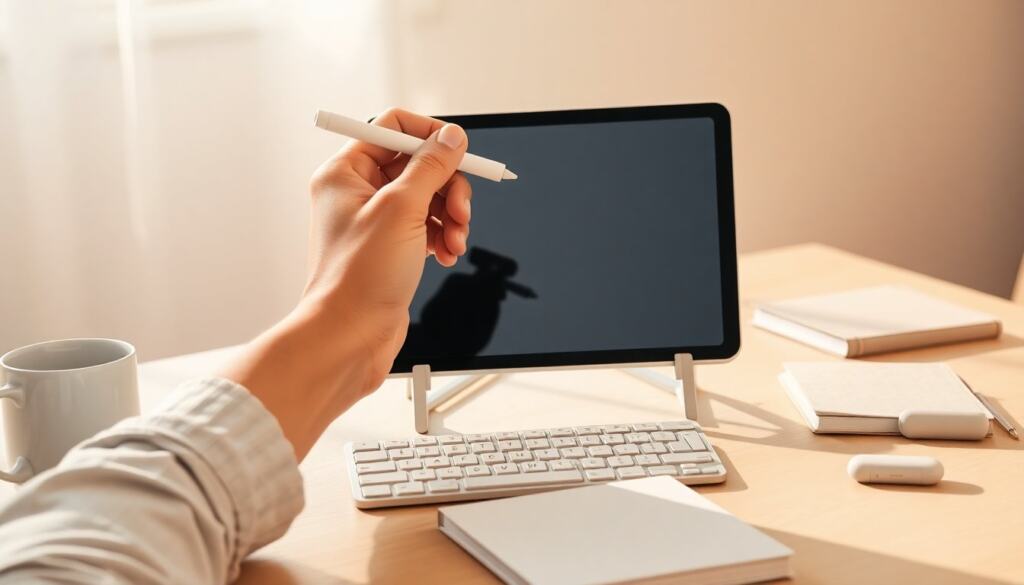
Using a tablet and stylus lets someone write naturally, capture ideas quickly, and edit without paper. The right combination of hardware, app settings, and technique turns handwriting on glass into a fast, legible workflow. This guide gives practical choices for tablets and pens, setup steps, core writing habits, and simple organization strategies so anyone can write clearly and confidently on a tablet.
Key Takeaways
- Choosing the right tablet and stylus depends on your primary use, with note-taking favoring lightweight tablets and sketching requiring pressure-sensitive styluses.
- Set up your tablet by enabling focus mode, adjusting brightness, and activating palm rejection for an uninterrupted and natural writing experience.
- Calibrate pen pressure and customize shortcut buttons to achieve a natural writing feel that enhances speed and legibility.
- Select writing apps that offer handwriting recognition, tagging, and suitable templates to streamline note organization and retrieval.
- Use proper grip, posture, and controlled strokes to reduce fatigue and maintain clear handwriting when writing with a stylus pen on a tablet.
- Develop an organized workflow with shortcuts, regular exports, and consistent tagging to keep digital notes searchable and well-maintained.
Choosing The Right Tablet And Stylus For Your Needs
Choosing the right gear starts with the primary use: note-taking, sketching, or long-form writing. For notes, a lightweight tablet with a responsive digitizer and decent battery life is best: for sketches, prioritize pressure sensitivity and tilt support. Screen size matters, 10–12 inches balances portability and writing area. For styluses, pick one with low latency and either replaceable tips or durable nibs: active pens (Bluetooth-enabled) often offer shortcut buttons and tilt detection. Consider compatibility (Apple Pencil for iPad, S Pen for Samsung, or active styluses for Windows/Android) and budget: a midrange tablet plus a quality stylus often beats an entry tablet with an expensive pen.
Setting Up Your Tablet For Writing
A tidy setup reduces friction. Start by disabling unnecessary notifications and enabling a focus mode so writing sessions aren’t interrupted. Set screen brightness to comfortable levels, enable palm rejection if available, and choose a case or stand that keeps the tablet at a slight angle. For stylus pairing, follow the manufacturer steps and update firmware to get the smoothest performance. Test basic gestures, undo, redo, and eraser, so they become second nature. Keeping the workspace minimal helps concentration and improves handwriting consistency.
Calibrate And Adjust Pen Settings For Natural Feel
Calibration and settings make writing feel familiar. Calibrate pressure sensitivity so light strokes are thin and harder presses are thicker: many apps let users map pressure curves. Adjust tip speed and palm rejection to avoid stray marks. Set the pen button for a frequently used command, eraser, undo, or quick note, so fewer taps are needed. If the tablet supports tilt, enable it for shading or slanted strokes. Spend 10–15 minutes fine-tuning these settings before committing to long sessions.
Pick The Best Writing App, Templates, And Paper Types
App choice shapes workflow. For structured notes and searchability, pick an app with handwriting recognition and robust tagging. For freeform sketches, choose one with layers and pressure-aware brushes. Use templates (ruled, grid, meeting notes) that match the task: many apps include paper types and custom templates to mimic notebooks. Test export options, PDF, PNG, or cloud sync, so work is easy to share. Prioritize apps that balance search and flexibility rather than feature-bloated tools.
Writing Techniques: Grip, Posture, And Stroke Control
Good technique prevents fatigue and keeps writing legible. Hold the stylus like a regular pen, about an inch above the nib, with a relaxed grip: a tight grip causes small tremors. Maintain an upright posture: shoulders relaxed, tablet slightly tilted, and wrist neutral. Practice consistent stroke direction, downstrokes slightly heavier than upstrokes, and use short, deliberate motions for letters rather than long sweeping gestures. To improve control, try warm-up drills: write repeating loops, short lines, and alphabet runs for five minutes at the start of a session.
Improve Legibility, Speed, And Note Organization
Improving legibility and speed is a mix of habit and app features. Use larger line spacing if handwriting looks cramped and slow the pace to favor clarity over speed initially. Leverage palm rejection and zoom-in writing for tight or small scripts. For organization, create a consistent tagging system and use folders or notebooks inside the app. Turning frequent actions into gestures or shortcuts (two-finger undo, double-tap to switch tools) saves time. Regularly export and back up notes to cloud storage to keep archives searchable and safe.
Organize Notes, Use Shortcuts, And Export Workflows
A reliable export and organization routine prevents lost work. Establish templates for meetings, classes, or projects so notes are consistent. Use shortcuts, keyboard shortcuts with a paired keyboard or pen buttons, to tag, title, or move notes quickly. Set up an export workflow: end each session by exporting to PDF or syncing to a central folder, then add keywords for retrieval. Periodic maintenance, weekly reviews and consolidation of related notes, keeps the system lean and searchable, turning messy scribbles into useful reference material.
Frequently Asked Questions About Writing on a Tablet with a Stylus Pen
What is the best tablet size for writing with a stylus pen?
A tablet with a 10–12 inch screen size offers a good balance between portability and enough writing area, making it ideal for handwriting with a stylus pen.
How can I set up my tablet for a better writing experience with a stylus?
Disable unnecessary notifications, enable focus mode, adjust screen brightness to comfort, enable palm rejection, and use a stand to angle the tablet, all of which help create a distraction-free and comfortable writing setup.
What writing techniques improve legibility when using a stylus on a tablet?
Hold the stylus like a regular pen with a relaxed grip about an inch above the tip, maintain upright posture, use deliberate short strokes with slightly heavier downstrokes, and practice warm-up drills to enhance control and clarity.
How do I calibrate my stylus pen for natural handwriting on a tablet?
Calibrate pressure sensitivity so light strokes appear thinner and heavier strokes thicker, adjust tip speed and palm rejection, assign quick commands to pen buttons, and enable tilt support for shading if available to mimic natural writing feel.
What are some organized ways to manage handwritten notes on a tablet?
Use apps with tagging and folders to categorize notes, create consistent templates, employ gestures or shortcuts for common actions, and regularly export and back up notes to cloud storage for easy retrieval and safety.
Can I use any stylus pen for writing on any tablet?
Stylus compatibility depends on the tablet; for example, Apple Pencil works with iPads, S Pen with Samsung devices, and active styluses with certain Windows or Android tablets. Choosing a stylus compatible with your tablet ensures better responsiveness and features.