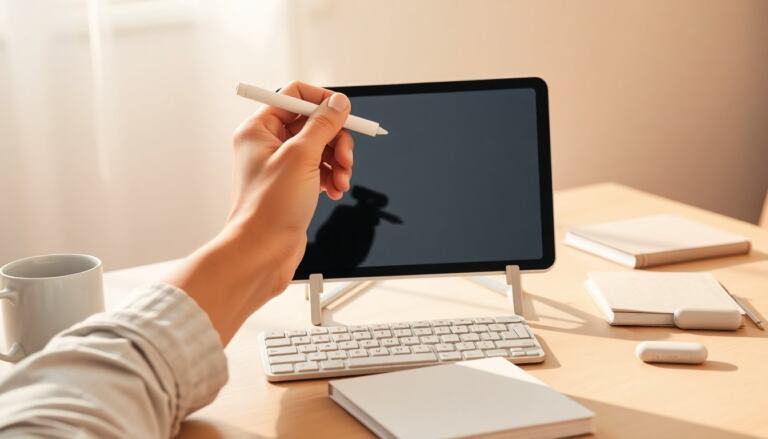

A drawing tablet pen is a specialized stylus used to draw, paint, retouch photos, annotate, and otherwise interact with a graphics tablet or pen display. Unlike a finger or mouse, a drawing tablet pen transmits fine-grained position, pressure, tilt, and sometimes rotation and button inputs to software so strokes behave like traditional media. This guide expands on how a drawing tablet pen works, which features matter for different workflows, how pens connect to devices, practical setup and calibration steps to get accurate lines, plus maintenance routines, common failure modes, and guidelines for when replacement is the most sensible option. The aim is practical, actionable advice so you can evaluate, use, and care for a drawing tablet pen effectively in 2026.
Key Takeaways
- A drawing tablet pen transmits position and pressure data to create precise digital artwork, making pressure sensitivity and tilt support crucial features.
- Choose a drawing tablet pen based on comfort, grip, weight, and compatibility with your tablet brand for optimal performance.
- Pens connect via EMR, Bluetooth, or batteries, so confirm your pen’s connectivity matches your workflow needs to avoid latency and pairing issues.
- Proper setup includes installing drivers, calibrating pressure and display mapping, and customizing buttons to enhance drawing efficiency.
- Regular maintenance like replacing nibs, cleaning the pen, and updating firmware helps prevent common faults and prolongs pen lifespan.
- Replace your drawing tablet pen when hardware issues or calibration problems outweigh repair costs to maintain drawing accuracy.
What A Drawing Tablet Pen Is And How It Works
At a basic level, a drawing tablet pen is a pointing device that communicates with a tablet surface or display to control a cursor and variable brush attributes. The most common data transmitted include X/Y coordinates (position), pressure level (how hard you press), and tilt angle (the orientation of the nib relative to the surface). More advanced pens can also report rotation (useful for calligraphy brushes or textured stamps), side-switch presses, and hover distance.
There are two main technical approaches in current tablets: active pens that contain electronics and passive pens that rely on electromagnetic interaction. Active pens may include batteries, Bluetooth radios, and haptic motors; they can offer features like shortcut buttons, erasers, and configurable pressure curves. Passive systems—often described as electromagnetic resonance (EMR)—use a magnetic field from the tablet to power the pen’s circuitry wirelessly, enabling battery-free operation while still delivering pressure and tilt data.
How pressure translates to a brush: the tablet samples the pen several hundred to thousands of times per second and converts pressure values into attributes such as stroke width, opacity, or texture intensity according to the brush settings in your software. Tilt information modifies brush angle for brushes that simulate pencils or airbrushes. The pen and tablet also rely on firmware, drivers, and application support to map raw sensor data into the final on-screen mark, which is why software compatibility and updated drivers matter.
Design choices affect feel and performance. Nib material and friction influence how the pen slides and how much feedback you sense. Internal weight distribution, diameter, and grip texture determine comfort during long sessions. Built-in buttons and an eraser can speed up workflow, but they add complexity and potential failure points. Understanding these basic mechanics helps evaluate trade-offs when selecting a pen.
Key Features To Evaluate When Choosing A Pen
When choosing a drawing tablet pen, prioritize the combination of ergonomics, input fidelity, and reliability for your specific tasks. Key features to compare include:
- Pressure sensitivity range: Higher reported levels allow finer gradation, but real-world differences diminish above a certain point—look for consistent, linear response rather than just a high number on paper.
- Tilt and rotation support: Essential for natural brush behavior with certain brushes. Confirm that the apps you use actually support these inputs.
- Latency and sampling rate: Lower latency and higher report rates reduce lag and jitter during fast strokes. This is important for illustrators and comic artists who rely on quick, confident lines.
- Nib options and feel: Replaceable nibs with varying materials (soft, hard, felt-like) allow you to tune friction and feedback to match tablet surfaces and personal preference.
- Ergonomics: Weight, balance, diameter, and grip shape affect fatigue. If possible, hold pens with a similar profile before buying or try a retailer demo.
- Buttons and shortcut layout: Programmable side buttons and an eraser are useful but consider accidental presses and whether the layout fits your hand posture.
- Power and charging: Battery-free EMR pens eliminate charging worries. Active pens should be evaluated for battery life, charging method (proprietary dock, USB-C), and whether they function while charging.
- Driver stability and firmware support: Reliable, frequently updated drivers reduce mysterious behaviour. Check vendor support channels and update cadence.
- Brand and ecosystem compatibility: First-party pens usually offer the broadest feature set on matching tablets; third-party pens can be a cost-effective alternative but may lack finer features.
Finally, consider workflow fit: a lightweight, thin pen may suit linework and manga, while a pen with a broader grip and softer nib may be better for painterly strokes and long painting sessions. Testing a pen in the environment you work in—your preferred software and tablet surface—will reveal subjective factors like grip comfort and tactile feedback that specs cannot convey.
Compatibility And Connectivity: Wireless, EMR, And Bluetooth
Understanding how a drawing tablet pen connects and interacts with devices prevents surprises. The three common connectivity approaches are:
- EMR (electromagnetic resonance): The tablet generates an electromagnetic field that powers the pen and reads signals without a battery. Benefits include no charging, lightweight pens, and typically very low latency. Limitations can include dependency on the tablet’s built-in tech—EMR pens usually only work with specific tablet families.
- Bluetooth or proprietary wireless: Active pens that use Bluetooth can transmit additional data (button states, advanced sensor data) and enable features like firmware updates or gesture commands. They require pairing and battery power; some models support low-energy modes to extend run time.
- Wired/charging: Many active pens charge via USB-C or proprietary docks and will function while charging. Wired connections are rarer for modern pens but ensure continuous power and eliminate pairing problems.
Compatibility considerations:
- Check the tablet manufacturer’s compatibility list: some pens expose full functionality (pressure, tilt, eraser, rotation) only on matching tablet models; on other devices they may fall back to basic pointing and pressure.
- Operating system support matters: macOS, Windows, Android, and Linux may expose different levels of driver support. If you use multiple platforms, confirm cross-platform functionality.
- Third-party pens and adapters exist but may require driver tweaks and can have reduced feature sets. Evaluate whether you need full tilt/rotation support or only basic pressure-sensitive pointing.
- Wireless setups can be affected by radio interference and driver issues—if you experience latency, test in a different environment and ensure firmware/driver updates are installed.
In short, match the pen’s connectivity type to how you work: battery-free EMR pens favor simplicity and long studio sessions without charging, while Bluetooth-capable pens offer advanced features and flexibility across devices but require occasional management of power and pairing.
Setup, Calibration, And Workflow Tips For Better Lines
Getting accurate, confident lines depends as much on setup and practice as on hardware. Follow these practical steps and tips:
- Install the latest drivers first: Download and install the tablet and pen drivers from the manufacturer before connecting the device. Reboot if the installer requests it.
- Calibrate display mapping: In the driver control panel, map the active area of the tablet to your screen or choose multi-monitor mapping. Use the calibration tool to align cursor and pen tip at multiple screen points—this reduces parallax on pen displays and ensures the pen points where you intend.
- Set pressure curves and sensitivity: Most drivers let you tailor the pressure-to-stroke response. Beginners often prefer a gentler curve (lighter pressure yields thicker strokes) until they develop consistent hand pressure; experienced artists tune curves for subtle control in the midrange.
- Adjust smoothing and stabilization: Many drawing apps offer stroke smoothing, stabilization, or lazy mouse features. Lower smoothing for quick sketching and higher smoothing for clean, flowing inks. Combine driver settings and app tools to find a balance that preserves responsiveness without jitter.
- Program shortcuts: Map common actions (brush size increase/decrease, undo, pan) to pen buttons, tablet express keys, or keyboard modifiers. This reduces mode switching and keeps your focus on drawing.
- Build muscle memory with targeted drills: Spend short daily sessions doing line exercises: straight lines, concentric circles, varying pressure strokes, and quick gesture thumbnails. These drills improve hand-eye coordination and pressure control faster than only working on finished pieces.
- Optimize your physical setup: Use a comfortable desk height and chair, tilt the tablet to a natural angle, and ensure consistent lighting to reduce glare. For pen displays, position the screen so your arm movement is natural—avoid excessive wrist twisting that causes fatigue and shaky lines.
- Profile per-application: Create different driver profiles for painting, inking, or precision vector work so you can switch sensitivity and button mappings quickly depending on the task.
Troubleshooting quick checks: if strokes feel laggy or jittery, confirm the tablet is connected via the recommended port, check for background processes that might load the CPU, try switching USB ports, reinstall the driver, test the pen on another device, and review app-specific input settings.
Maintenance, Common Problems, And When To Replace Your Pen
Routine care and knowing how to diagnose common problems will extend the life of your drawing tablet pen and save time troubleshooting. Maintenance tasks and troubleshooting tips include:
- Nib replacement: Nibs wear through normal use; a worn nib can cause inconsistent contact and scratch the tablet surface. Replace nibs when they feel blunt or begin to chatter. Keep spare nibs and a removal tool on hand.
- Cleaning: Wipe the pen body and barrel with a soft, lint-free cloth. Avoid liquids getting into seams or buttons. Clean the tablet surface with a microfiber cloth to remove dust and oils that affect nib friction.
- Battery and charging care: For powered pens, follow the manufacturer’s charging guidance. Avoid deep discharges when possible and use the included cable or dock to preserve battery health.
- Firmware and driver updates: Check periodically for firmware updates for both pen and tablet and install updated drivers to address performance issues and add features.
- Common faults and quick fixes:
- Skipping strokes or intermittent input: try a new nib, check USB or wireless connection, test on another computer to isolate tablet vs. system problems, and reinstall drivers.
- Erratic pressure readings: reset pressure curves, try the pen on a different surface, and reinstall or roll back drivers if a recent update introduced the issue.
- Buttons not responding: check driver button mappings, test the physical switch with another device, and inspect for debris around the button. If the button hardware fails, warranty or replacement may be required.
- Loss of tilt/rotation: confirm app support, test another pen if available, and update firmware. If tilt loss persists across devices, the pen’s internal sensor may be failing.
When to replace the pen: replace a drawing tablet pen when multiple diagnostics fail to resolve core issues (persistent pressure inconsistency, broken internal sensors, irreparable physical damage), when replacement parts are no longer available, or when repair costs exceed the price of a new pen. For professional workflows, replacing a pen proactively when accuracy deteriorates can be less disruptive than intermittent faults during client work.
Finally, if you rely on a drawing tablet pen daily, keep a spare pen or a set of consumables (extra nibs, a small cleaning kit, and a backup charging cable) in your kit. That minimal preparation prevents minor hardware issues from becoming major interruptions to your creative flow.