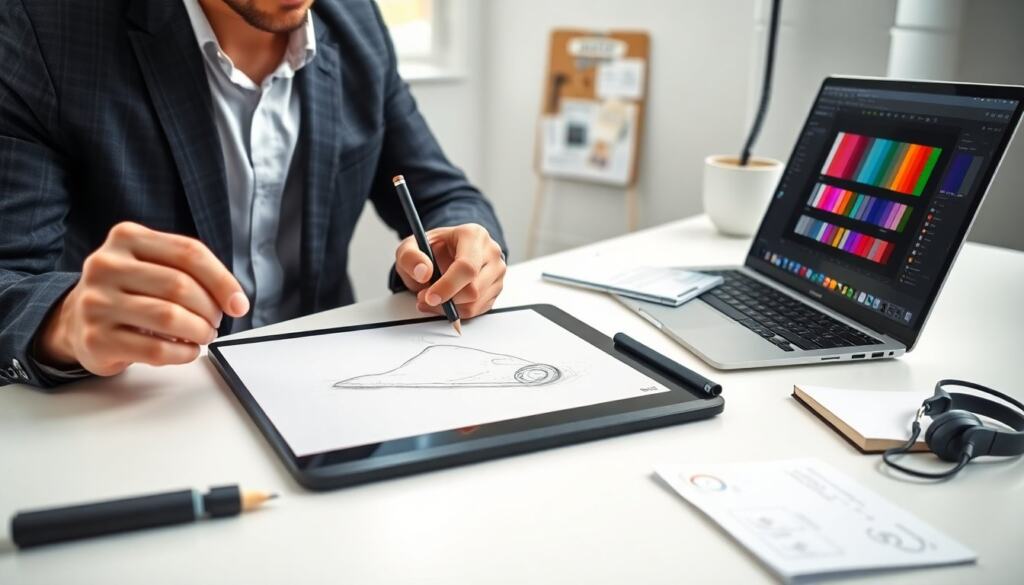
A paper drawing tablet lets an artist draw on real paper and capture the strokes as a digital file. The device combines a physical pad, a smart pen, and software. This guide explains what a paper drawing tablet does, how it works, what to compare, and simple setup steps. It keeps advice short and practical for artists, students, and professionals.
Key Takeaways
- A paper drawing tablet captures pen strokes on real paper and instantly converts them into digital files for seamless editing and sharing.
- Comparing pen technology, pressure sensitivity, compatibility, and file formats is essential when choosing the best paper drawing tablet for your needs.
- Higher pressure sensitivity and accurate tracking improve drawing precision, making the tablet ideal for illustrators, animators, and note-takers.
- Paper drawing tablets streamline workflows by eliminating scanning steps and preserving the natural feel of paper with digital convenience.
- Proper setup includes driver installation, pen calibration, and paper alignment to ensure accurate stroke capture and minimize common issues like jitter or pairing failures.
- For classroom or professional use, consider models with reliable customer support, battery life, and multi-device compatibility to enhance productivity.
What Is a Paper Drawing Tablet and How It Works
A paper drawing tablet records pen movement on real paper and converts the data to a digital image. The device uses a sensor layer under the paper or a smart pen with a camera or electromagnetic receiver. The pen writes on paper while the tablet logs position, pressure, and tilt. Software then maps the pen data to vector or raster strokes. The tablet saves files to a computer, tablet, or cloud. Some models store data on an internal drive and sync later. Others stream live to drawing software. A paper drawing tablet keeps the hand feel of paper and gives a digital backup. It lets an artist edit, color, and share without scanning. It also reduces time spent scanning and aligning images.
Key Features To Compare Before You Buy
Buyers should compare capture method, pen performance, compatibility, and workflow. Models differ by whether the device uses a smart pen, a sensor pad, or optical capture. The capture method affects latency and accuracy. Buyers should check file formats, operating system support, and available drivers.
A paper drawing tablet price varies with feature set. Higher-priced models often add onboard storage, Bluetooth, or multi-device pairing. Battery life and pen charging matter for heavy users. Warranty and customer support matter for classroom or studio use.
A paper drawing tablet that offers open file formats eases integration with popular art apps. Buyers should confirm whether the tablet works with the apps they use for illustration, animation, or note-taking. They should test sample captures or view online demos before purchase.
Pen Technology, Pressure Sensitivity, And Tracking Accuracy
Pen technology drives the feel and fidelity of a paper drawing tablet. Active pens use a battery or internal electronics and provide firm tracking. Passive pens rely on electromagnetic resonance and avoid charging. Each system gives different weight and balance.
Pressure sensitivity determines how many pressure levels the device reports. Higher levels give smoother line weight transitions. Many tablets report 4,096 to 8,192 pressure levels. That range suits most illustrators and animators. Tracking accuracy measures how closely the digital stroke matches the pen path. Buyers should look for low latency and sub-millimeter spatial accuracy. Check sample files to compare jitter and smoothing. Tilt detection helps when the artist uses angled strokes or a brush engine that simulates a tipped pen. Finally, test the pen nibs. Replaceable nibs affect drag on paper and change the tactile feedback.
Best Use Cases: Animation, Illustration, Note‑Taking, And Education
A paper drawing tablet fits different workflows. Animators can sketch key frames on paper and capture timing with digital frames. The device speeds the transfer from pencil roughs to software for cleanup and coloring. Illustrators can keep pencil texture while working in layers on a computer. They can preserve line quality and move quickly between analog and digital stages.
Students and professionals use a paper drawing tablet for note-taking and diagrams. The device creates searchable digital notes and reduces paper filing. Teachers can collect student sketches as files and grade work online. Schools can pair a paper drawing tablet with classroom software to streamline assignments.
In animation and storyboarding, a paper drawing tablet saves scanning time and keeps drawing rhythm. In illustration, it preserves hand style and adds editing flexibility. In education, it reduces lost pages and eases sharing. In short, the device suits anyone who values paper feel and digital access.
Setup, Workflow Tips, And Common Troubleshooting
Setup usually involves installing drivers, pairing the pen, and calibrating the device. The user should place the paper flat and align reference marks if the tablet requires them. The software will ask to map pen input to screen coordinates. The user should run the calibration step every time they change paper position.
Workflow tips improve capture quality. The artist should use consistent paper weight and avoid glossy sheet protectors. The user should keep the pen tip clean and replace nibs that show wear. They should enable high-resolution capture in the app for final scans and use a lower resolution for quick drafts. Many artists keep two files: a raw capture and a cleaned layer to preserve the original pencil texture.
Common issues include missing strokes, jitter, and pairing failures. If strokes drop, the user should check battery levels and radio interference. If jitter appears, the user should test a different pen nib and try a slower stroke. If the tablet fails to pair, the user should restart both devices, reinstall drivers, and test a different USB cable or Bluetooth profile. For file compatibility problems, export the capture to a common format like PNG, PSD, or SVG and then import into the target app.
If the tablet includes internal storage, the user should back up captures to a computer or cloud. If the user experiences latency, they should lower capture resolution or close other apps that use CPU. For classroom deployment, the admin should create a standard image and driver package to speed setup across devices.