How to edit photos for beginners comes down to one choice and one order. Pick a free editor such as GIMP to learn on, then work through exposure, white balance, colour and finishing detail in that sequence.
If you are still weighing tools, the best photo editing software for beginners guide compares free and paid options, and the best photo editing apps guide covers phone-first editing. The sections below tie each common fix to a tool and finish with a clear next step for each goal.
Choosing where to start
The first decision is not which program is most powerful. It is which one you will open often enough to build a habit. Beginner editing guidance from a retail photo-editing guide states that free software and apps are enough to learn and get to grips with the first steps of photo editing. That removes cost as a reason to delay. Four criteria narrow the choice quickly.
- Budget: If you want to spend nothing while you learn, start with free software. The same guide names GIMP as free image editing software for beginners, and it suggests paid Adobe tools only once you are an ambitious amateur who wants more possibilities.
- File type: If your camera can save RAW files, pick an editor that opens them properly. The next section explains why that matters.
- Organising versus altering: If you have a growing library and mostly need to sort and adjust, you need a catalogue-style tool. If you need to cut things out, combine images or retouch in detail, you need layers.
- Device: If you only ever edit on a phone, begin with an app rather than forcing yourself onto desktop software. Adobe Lightroom is supported on Windows, macOS and Android, according to a photography tutoring guide, so one tool can span a computer and an Android phone.
Use these criteria as a decision path. If you answered “no cost” and “I just want to fix my pictures”, go straight to the GIMP section later in this guide. If you answered “RAW” and “large library”, read the Lightroom and Photoshop comparison first. If you answered “phone”, open the apps guide above and return here for the order of edits, which applies on any device.
RAW or JPEG: decide before you edit
RAW files give you more room to edit than JPEG files. Digital Photography School’s beginner editing walkthrough puts it bluntly: if you want to do serious photo editing, you need to be using RAW. The practical consequence is that the same exposure or white-balance correction has more latitude to work with when the original file is RAW.
RAW comes with a trade-off you should expect. The same walkthrough notes that RAW files tend to suffer from limited contrast, so a contrast increase is a normal early step rather than a sign that something went wrong. A flat-looking RAW file straight out of the camera is not a failed photo. It is raw material.
Choose by habit and goal:
- Shoot RAW if you plan to correct exposure and colour in an editor and are happy to treat every image as a file that needs finishing.
- Stay with JPEG if your pictures already look right when they come out of the camera or phone and you only want light touch-ups such as a crop.
Whichever you choose, the editing order below stays the same, so you do not need to settle this question before you start practising.
The editing order, step by step
Edit in a fixed order: exposure first, then white balance, then contrast and colour, then geometry and cleanup, then detail. The order matters because colour corrections depend on the tonal base. The retail guide advises editing the colours of your photo after you have made any exposure corrections, and the Digital Photography School walkthrough says its workflow can be repeated in Lightroom CC, ON1 Photo RAW, Capture One and other software. Treat the steps as portable and the tool as a matter of preference.
Step one: exposure and the histogram
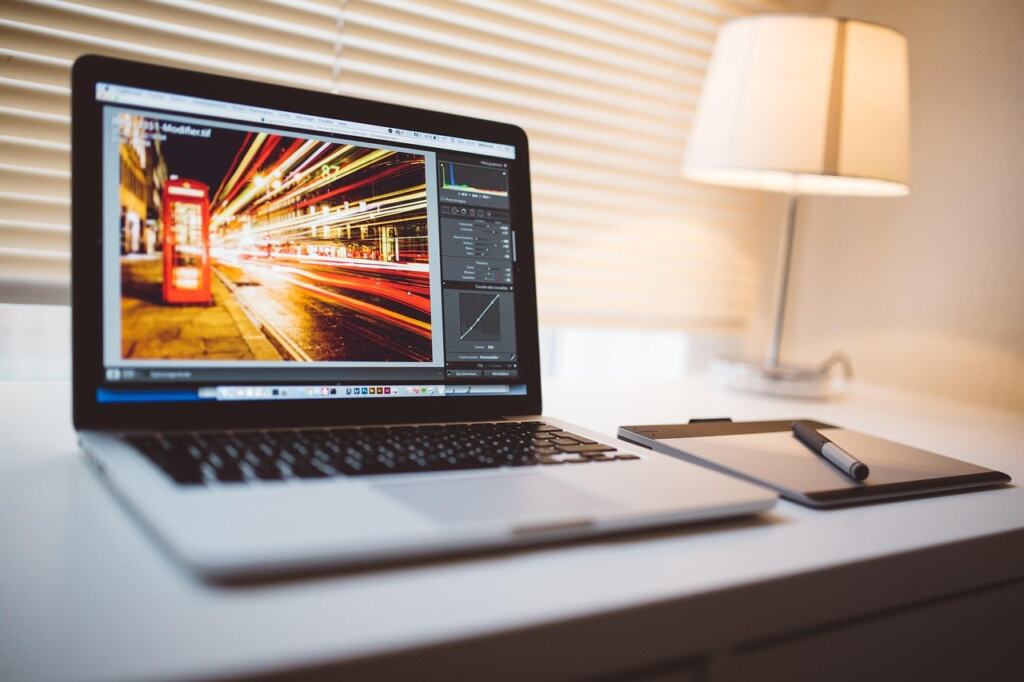
Start with the Exposure slider and the histogram. Digital Photography School recommends looking at exposure first, and the histogram is the check that keeps you honest. Peaks pressing up against either side of the histogram indicate clipped details, meaning parts of the picture where tone has been pushed to pure white or pure black. If you see that, pull the exposure back until the peaks move away from the edges rather than judging by how bright your screen looks.
Clipping also explains a shooting habit. The retail guide advises that when in doubt you should underexpose a photo slightly, because valuable image details are lost in overexposed photos. In editing terms, a slightly dark file can usually be brightened, while highlights that were blown out cannot be recovered by the same move. That is useful to remember before your next outing with the camera.

Step two: white balance
Fix white balance next, because a colour cast makes every later colour decision harder. Digital Photography School describes the quickest route: select the eyedropper tool, then click on an area of the image that should be a true white. If the result still feels too warm or too cool, fine-tune with the Temp and Tint sliders.
This method works best when your picture contains something that is genuinely neutral white. If the frame has no obvious white area, skip the eyedropper and go directly to the Temp and Tint sliders, judging by skin tones or a neutral object rather than by the overall mood.
Step three: contrast and curves
Once exposure and white balance are settled, add contrast. This step is usually most noticeable on RAW files, which tend to start out with limited contrast. A Contrast slider is the simplest control and is the right place for a beginner to start.
The Curves tool gives finer control over the same job, and it is worth learning early. In GIMP, a photo-store community answer on learning GIMP effectively points beginners to the Curves dialog in the Colors menu. Use the Contrast slider while you are new, and move to Curves when a single slider cannot give you the shape you want.
Step four: colour
Adjust colour only after exposure and white balance are in place. The ordering rule from the retail guide exists because changes to tone and white balance alter how every colour looks, so colour work done too early often has to be redone.
Make colour changes in small moves and compare against the original often. A landscape is a good practice subject because the sky, water and foliage each respond differently, and you can see quickly when an edit has gone too far.
Step five: straighten and crop
Level a crooked horizon before you crop. A retail guide notes that you will find an angle tool on a lot of image editing software, and that is the control to reach for when a horizon looks wonky. Straighten first, then crop, because straightening rotates the frame and crop decisions follow from the result. For ratios, composition and quality when you resize, see our guide on how to crop a photo.
Step six: retouch spots and distractions
Retouching is the stage for dust spots, blemishes and small distractions. The retail guide explains how repair brushes and object erasers work: they remove the affected area of the image and automatically replace it with a similar or surrounding area. That makes them the right first choice for small, isolated problems against a fairly even background.
When the automatic fill is not convincing, GIMP offers manual tools. The community answer mentioned earlier lists healing and cloning tools used with soft brushes at different opacities. Soft brushes and lower opacity let you build a repair gradually rather than stamping a hard-edged patch. Photoshop is also noted for tasks such as retouching and layers, and its retouching tools sit alongside layers and selection tools in the feature list given by the Superprof guide.
Step seven: sharpening and noise
Leave sharpening and noise reduction until last. Digital Photography School tells readers to zoom in to 100% while they do this, because at a reduced zoom the screen preview hides the very detail you are trying to judge. Check different parts of the frame at that zoom level before you settle on settings, then zoom out to confirm the picture still looks natural at normal viewing size.
Lightroom or Photoshop
Lightroom is built for organising and editing photos, while Photoshop is built for specific tasks such as layers and retouching. The Superprof guide lists the primary uses of Adobe Lightroom as importing, saving, viewing, organising, tagging, editing and sharing photos, and says it is best for people who want to organise and edit their photos. The same guide describes Photoshop, released by Adobe as a raster graphics editor for Windows and Mac computers, as the tool for accomplishing specific tasks such as retouching and layers. Its listed features include layers, selection tools, the pen tool, shapes, vector masks, retouching tools and smart objects.
For a beginner, that translates into a simple rule. Choose Lightroom when the job is “make this batch of photos look good and keep them findable”. Choose Photoshop when the job is “change what is in this picture”. Most of the basic edits in the previous section, including exposure, white balance, contrast and colour, belong to the first category.
What the Lightroom plan includes
Plan contents matter more than the product name. According to a software reseller’s Adobe selection guide, the Lightroom CC plan offers 1 TB of cloud storage and RAW file processing, and it now also includes Lightroom Classic, the desktop application. It does not include Photoshop. If you need both programs, check what your chosen plan covers before you assume Lightroom brings Photoshop with it.
The same guide points out that you can work offline, without relying on cloud storage. If you edit on a laptop while travelling or dislike the idea of your whole library living online, that is the reason to look at Lightroom Classic rather than the cloud-first version.
Who each tool suits
- Lightroom suits the photographer who shoots RAW, collects many images and wants one place to import, sort, edit and share.
- Photoshop suits the person who wants detailed retouching, layered compositions or precise selections, and who is willing to learn a larger toolset.
- Neither is required on day one. The retail guide recommends paying for Adobe Photoshop and Lightroom as a step for ambitious amateurs who want more possibilities, not as a prerequisite for learning.
Working without damaging the original
Layers are the main reason to learn Photoshop or a layer-capable alternative, because they let you stack changes rather than altering the picture directly. Our guide to non destructive photo editing explains how layers, masks and adjustment layers fit together, and it is the natural next read once you outgrow single-slider edits.
The best free photo editor to learn on
GIMP is a sound free choice to learn on. The retail guide suggests free image editing software for beginners such as GIMP, and its wider point holds for any free option: free software and apps are enough to learn the first steps. GIMP has what the steps in this guide need. It has a Curves dialog in the Colors menu, selection tools for working on part of an image, healing and cloning tools for retouching, and layer masks.
That makes GIMP a practical place to follow the editing order above on a computer without paying anything. If you later decide you want a catalogue-style workflow for a growing RAW library, you will already understand the underlying adjustments, so switching to Lightroom is mostly a matter of learning a new layout.
When to move on from a free editor
Move on when your workflow, not your ambition, starts to fight the software. If you spend more time hunting for files than editing them, a library-oriented tool such as Lightroom addresses that. If you keep needing layered work and precise selections, Photoshop covers that. Until one of those problems appears, there is no strong reason to pay.
Removing a background
Removing a background is a selection job: you isolate the subject, then hide or delete everything else. The community answer on GIMP notes that selection tools let you limit edits to part of an image and that layer masks can feather selections. Feathering softens the cut edge so the subject does not look pasted on. Photoshop lists selection tools, a pen tool and vector masks among its features, which suits subjects with precise outlines.
As a beginner, start with a subject that already stands out clearly from its surroundings, and use a mask rather than erasing pixels so you can correct the edge later. Our guide on how to remove background from image covers free tools and manual methods in detail, including what to try when the automatic option leaves a rough edge.
Quick comparison of the main editors
Use this table once you know your priorities. It compares the three editors named in this guide on the criteria that usually decide a first choice.
| Editor | Cost and platforms | Strongest at | Planning use |
|---|---|---|---|
| Adobe Lightroom | Paid; supported on Windows, macOS and Android | Importing, organising, tagging, editing and sharing photos | Pick it for a growing RAW library and a repeatable edit-and-share routine. |
| Adobe Photoshop | Paid; released for Windows and Mac | Layers, selection tools, pen tool, vector masks, retouching tools, smart objects | Pick it when you need to change what is in the picture or retouch in detail. |
| GIMP | Free | Beginner-friendly editing with Curves, selection tools, layer masks, healing and cloning | Pick it to learn the full editing order without spending anything. |
Figures and feature lists come from the Superprof Lightroom and Photoshop guide and the beginner editing guide that names GIMP as free software for beginners and Adobe tools as a paid step up.
After the basics: where to go next
Once your corrections feel routine, choose a next step by the result you want rather than by the tool. Each of these guides starts from a different goal.
- Old or damaged prints: read how to restore old photos for scanning, repair and colourising.
- Social media: read how to edit photos for instagram for sizes and edits across platforms.
- Automated edits: read what AI tools do well and where they fail in the best ai photo editor guide before trusting them with an important picture.
- Painterly looks: try Turn Any Photo Into A Lush Oil Painting For Free: 3 Easy Online Methods (2026) – Picozu, Turn Photos Into Watercolor Paintings: A Simple Step‑By‑Step Guide For Beautiful Results In 2026 – Picozu or Turn Any Photo Into A Stunning Painting: A Practical Guide To AI Photo‑To‑Painting (2026) – Picozu.
- Line art and cartoons: try Turn Photos Into Line Drawings Online For Free: Fast Methods, Best Tools, And Tips (2026) – Picozu or How To Turn A Photo Into A Cartoon: 3 Easy Methods For 2026 – Picozu.
- Distorted digital looks: try How To Create Stunning Glitch Effect Photos: A Practical Guide For 2026 – Picozu, or animate the effect with Glitch Effect GIFs: How To Create Eye‑Catching Distorted Animations In 2026 – Picozu.
Stylised effects work best when the underlying photo is already well exposed and neutral in colour, so keep practising the corrections from this guide on every image before you apply a creative look.
A simple practice routine
Skill comes from repeating the same order on varied photos, not from learning every slider at once. Pick a handful of your own pictures and run each through the same checklist.
- Open the file, preferring the RAW version if you have one.
- Set exposure while watching the histogram for peaks touching either edge.
- Fix white balance with the eyedropper or the Temp and Tint sliders.
- Add contrast, moving to Curves when a slider is not enough.
- Adjust colour in small steps.
- Straighten, then crop.
- Remove spots with a repair tool or a soft healing brush.
- Sharpen and check noise at 100% zoom.
After a few sessions, compare your first and latest results side by side. The change you notice most will usually be restraint: better-edited pictures tend to look less processed, and that is a sign the order is working.
Frequently asked questions
Can I follow this workflow in any editor?
Yes. Digital Photography School says the same results can be achieved with any editing software, including Lightroom CC, ON1 Photo RAW and Capture One. The slider names differ, but the order of exposure, white balance, colour and detail carries over.
Do I need to convert RAW files before sharing them?
Yes. A RAW file has to be converted to a JPEG through a RAW editor before you post it online, so export a JPEG copy when editing is finished.
How do I fix a crooked horizon?
Use the angle or straighten tool, which is available in many editors. Apply it before cropping so the final frame is based on the levelled image.
Is a paid editor necessary to get good results?
No. Free software and apps are enough to learn the first steps. Paid Adobe tools become worthwhile mainly when you want more possibilities, such as detailed retouching in Photoshop or library management in Lightroom.