With a blank canvas and a new tablet, learning how to draw digitally for beginners comes down to one skill at a time: pen pressure, then layers, line art, flat color and shading, in that order.
Every section below ends with a short practice exercise and points to the matching tool or guide. For the whole process in a single read-through, start with How to Draw Digital Art: A Practical Step‑By‑Step Guide for Beginners (2026) – Picozu, then come back here to choose a route.
Choose your route
Beginners arrive with different goals, and the right starting point changes with them. Find the line that sounds like you and follow that path.
- You have never used a drawing tablet. Read the setup section, then work through the weekly route in order. It follows an 8-week plan that gives each skill its own week.
- You want to paint rather than outline. Finish the weekly route through shading, then read the painting workflow section. For a longer walk-through of painting techniques, continue with Digital Painting Tutorial: Master Core Techniques In 7 Practical Steps (2026) – Picozu.
- You want to draw characters. Build line art and flat color first, then jump to the final section for hands, poses, folds and character design.
- You need subjects to practise on. A page of prompts removes the blank-canvas problem, and 50 Creative Random Drawing Ideas To Spark Your Sketchbook In 2026 – Picozu is a good place to find them.
Whichever route you take, the tools come first. The next section covers how your hand and eyes will work together.
Set up your tablet and workspace
Your hardware decides where your hand and eyes work, not which skills you learn. A published beginner roadmap separates two device setups: a pen display, where you draw straight onto a screen connected to a computer, and a pen tablet, where you draw on a pad and watch a separate screen.
Pen display or pen tablet
A pen display suits anyone who wants the pen tip and the line to appear in the same place, the way they do on paper. A screenless pen tablet puts your hand on one surface and your eyes on another. The pen-pressure practice below doubles as practice at that coordination, so do not skip it if you choose the pad.
A tablet that carries its own screen, such as an iPad running a painting app, behaves like a pen display for this purpose. The app comparison later in this guide covers which programs run where.
What to do before you open the app
Pen pressure is set in the tablet settings, so check them first. Once that is done, the app only needs to be open and empty. You do not need a long list of brushes, tools or panels to begin.
Practice exercise: Draw a short row of strokes, pressing lightly on the left and more firmly toward the right. If the line does not get visibly thicker as you press, return to the tablet settings before you do anything else.
The weekly route: one skill per week
The roadmap orders the skills as tablet and pen pressure, then layers, then clean line art, then flat color, then shading. Each skill gets its own week, and each week ends with a milestone: one finished piece. It suggests 20 to 40 minutes a day, 5 days a week, per the roadmap itself.
That is a modest commitment, so keep sessions short rather than skipping weeks. A finished piece at the end of each skill also tells you honestly when to move on, because you can see whether the line, color or shadow is doing its job.
Pen pressure and line control
Pen pressure is the link between how hard you press and how the line looks. The roadmap describes it simply: set pen pressure in your tablet settings so a light stroke gives a thin line and a firm stroke gives a thick line. This one setting makes digital lines feel like pencil or ink rather than like a mouse trail.
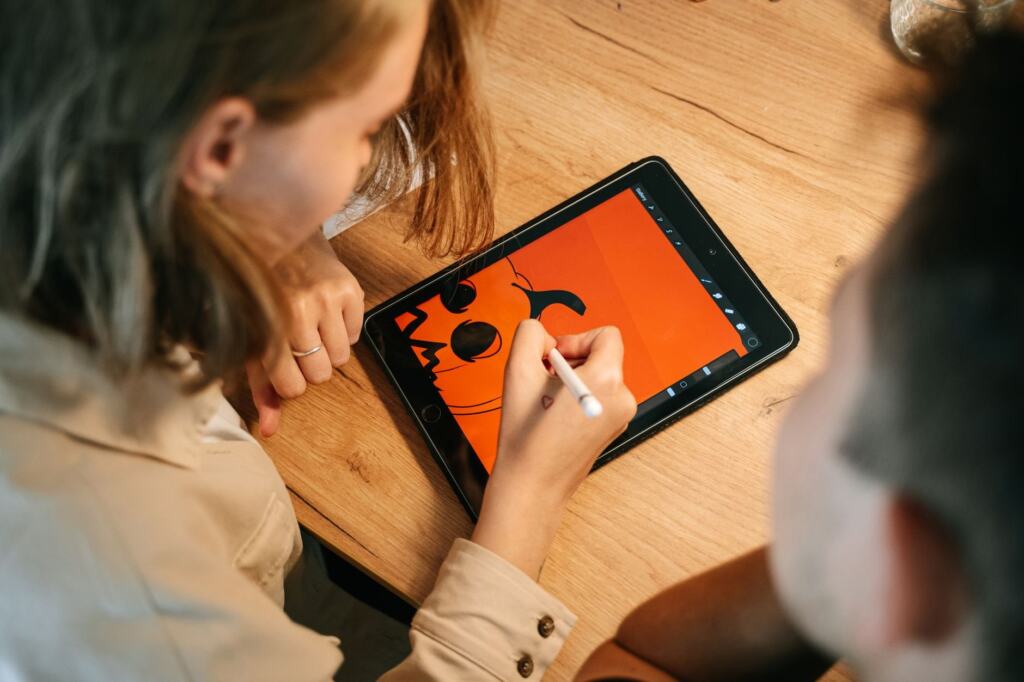
Do not judge your results on drawings yet. Judge the stroke. Draw long curves, short flicks and straight lines, and look for lines that start thin, thicken, and end thin without wobbling.
Practice exercise: Fill a page with curves and flicks, then pick the three smoothest and note how hard you pressed. Matching tool: your tablet’s own pressure settings, which sit outside the painting app.
Layers: sketch, line art, background
Layers are transparent sheets stacked in one document, and they let you change one part of a drawing without touching the rest. The roadmap’s beginner setup is three layers: sketch, line art and background. It tells you to name each one, because names keep the stack readable once you have more.
The working habit is simple. Draw loosely on the sketch layer, lower that layer’s opacity, then draw cleaner lines on a new layer above it. This is the core answer to how you use layers in digital art: rough work and finished work live apart, so a bad line costs one erase, not a whole drawing.
Practice exercise: Sketch a simple pup on the sketch layer, lower its opacity, and ink over it on the layer above. The guide How To Draw Cute Dogs: A Simple Step-By-Step Guide To Adorable Pup Sketches (Easy Tips For 2026) – Picozu gives a friendly subject to practise on. Matching tool: the layer panel and its opacity slider, available in every app in the comparison below.
Clean line art
Line art is where pen pressure and layers meet. You are no longer testing strokes. You are choosing which strokes stay. Judge a line by whether it reads clearly without the sketch underneath, then switch the sketch layer off and check.
Short, confident strokes usually look cleaner than one long hesitant line. Undo is cheap in digital work, so redraw a stroke you dislike instead of correcting it with small fixes.
Practice exercise: Ink a simple flower from a rough sketch, hide the sketch layer, and redraw any line that looks broken or heavy. The guide How To Draw Beautiful Flowers Step By Step: A Simple Beginner’s Guide (2026) – Picozu offers a clear subject for this. Matching tool: the brush you will save for line art, covered in the brushes section.
Flat color
Flat color means filling shapes with plain, even color before any shading. The roadmap keeps fills clean by clipping them to the line art, and says the feature is called a clipping mask, alpha lock or preserve transparency depending on the app. When you follow a tutorial for a different program, search for those three names and you will find the same function.
Clipped color cannot spill outside the lines, which saves a great deal of erasing. Keep fills on their own layer below the line art so you can recolor a shape later without redrawing anything.
Practice exercise: Fill a simple seasonal object with flat colors, one color per shape, and check the edges for gaps. Fall subjects work well here, so try 25 Pumpkin Drawing Ideas To Spark Creativity This Fall (Easy To Advanced) – Picozu. Matching tool: clipping mask, alpha lock or preserve transparency, whichever your app calls it.
Shading with a Multiply layer
Shading in digital painting starts with a single shadow layer. The roadmap’s method is to add a shadow layer set to the Multiply blend mode above your colors and clip it to them. Use one shadow color and one light direction, so every shadow in the picture agrees about where the light comes from.
To test whether the shading works, turn the picture grayscale for a moment, for example with a temporary black-and-white layer. The shapes should still read clearly. If they melt together, the shadows are too close in value to the colors under them. Make the shadows darker or the lights lighter before adding any detail.
Practice exercise: Choose a light direction, paint all shadows on one clipped Multiply layer, then toggle grayscale and decide whether the form still reads. Matching tool: the Multiply blend mode in your layer panel.
Choose your app
You can learn every skill above in any common program. The roadmap states that the skills transfer across apps and lists common beginner choices, while a second guide describes what Procreate and Clip Studio Paint were built for. The table compares them on the points that matter when you are choosing.
| App | Platform and cost noted | How it is described | Planning use |
|---|---|---|---|
| Krita | Free and open source, for computers | Listed as a common beginner choice | Suits a computer user who wants to start without spending anything. |
| Procreate | iPad | Designed for digital art and illustration, with built-in brushes, layers and blending modes | Suits anyone who already owns an iPad and wants a tool made for drawing. |
| Clip Studio Paint | Not specified in the sources | Designed for digital art and comics, with brushes, layers and blending modes | Suits anyone leaning toward comics or illustration. |
| Photoshop | Not specified in the sources | Listed as a common beginner choice | Suits anyone who already has it, since the lessons below work with its layers. |
Platform and description details come from the Roadmap Creator beginner guide and the Jae Johns digital art guide.
The decision is mostly about the device you already own. An iPad owner has an obvious match in Procreate, a computer user on a tight budget has Krita, and a comics-minded learner has a reason to look at Clip Studio Paint. If you already hold a Photoshop licence, do not buy another app just to start, because layers, blend modes and the clipping function exist in all of them under slightly different names.
Avoid switching apps in the middle of the weekly route. Each switch resets your sense of where the tools sit, and the lessons you are learning belong to the skill, not the software.
Brushes: a small set and your own
Too many brushes slows a beginner down. The roadmap’s advice is to choose three brushes on purpose: one for sketching, one for line art, and one for color and shading. Save the three in a custom set so you can find them fast. That custom set is the first answer to how you make custom brushes, and it costs nothing but a few minutes of choosing.
A brush also depends on your pen-pressure setting, which is why that setting comes first. The same brush will feel different once pressure maps light strokes to thin lines and firm strokes to thick ones.
Hard and soft brushes
A Tuts+ beginner series includes a lesson on the difference between working with hard and soft brushes in Photoshop. Treat that as a practical test for your own set. Use a hard-edged brush for crisp line art and a softer one for blending shadows, then decide which of your three brushes fills each role.
Brushes made from your own paintings
Once the basic set feels natural, you can build brushes with a personal character. The artist in a Wacom community tutorial says a lot of her custom brushes come from traditional scans of her own paintings. This is an option for later, not for week one, but it shows that a custom brush can start from marks you made by hand.
If you work in Procreate, read Where To Download Procreate Brushes Safely In 2026: Free, Paid, And How To Install – Picozu before adding third-party brushes.
Practice exercise: Pick your three brushes, save them as a custom set, then use each only for its job through one whole drawing. Afterwards, note which one you reached for by habit and whether it fits its role. Matching tool: the brush library and custom set in your app.
A digital painting workflow
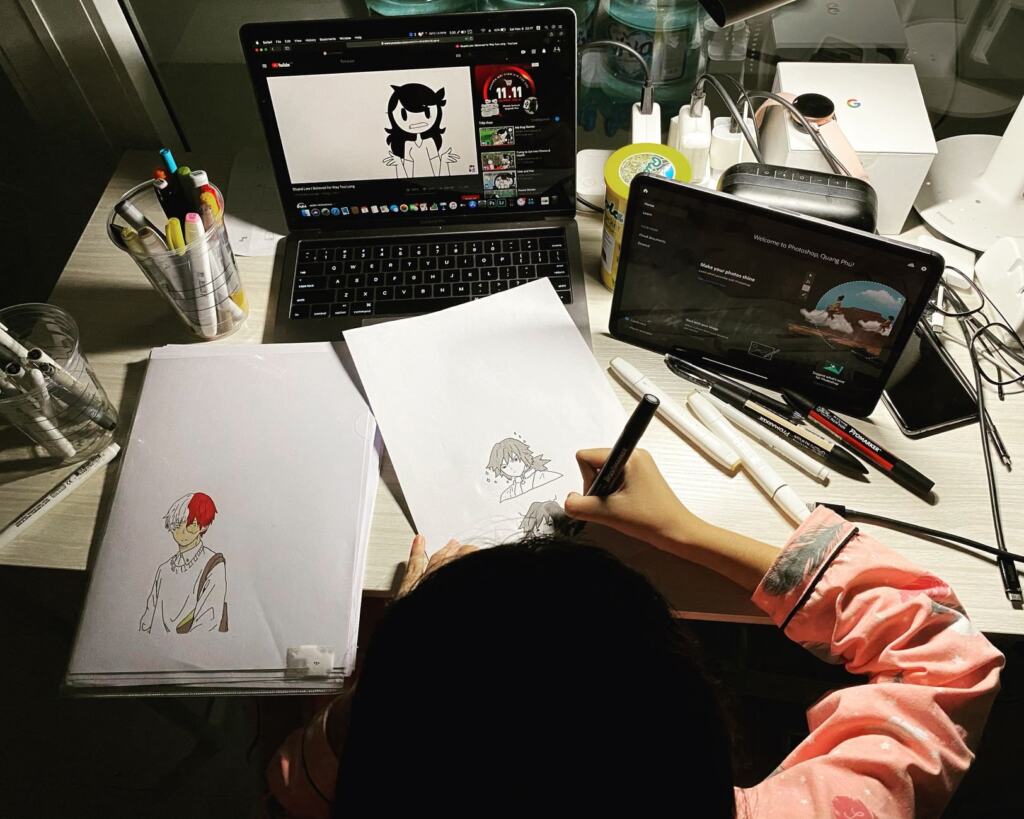
Digital painting is described as basically like traditional painting, carried out on a computer or digital device. The weekly route teaches the controls. Painting adds a way of thinking about shapes and values before details.
The artist in the Wacom community tutorial begins by sketching exaggerated shapes from a reference photo. The workflow then moves from a gestural sketch to silhouette and mass shapes, and only afterwards to values. For a beginner, that order is the point: decide the big shapes while they are still cheap to change, and leave texture and detail for the end.
Where oil-style painting fits
When you want thick, textured strokes rather than clean cartoon shapes, move on to Digital Oil Painting: Master Realistic Brushwork, Texture, and Color in 2026 – Picozu. It builds on the brush and layer habits above, so finish the weekly route first.
Practice exercise: Take a reference photo, sketch exaggerated shapes from it, and reduce the sketch to a plain silhouette on its own layer. If the silhouette is recognisable, the shapes are working. Matching tool: a simple round brush and a separate layer for the silhouette.
Color and value
Color theory for a beginner is easiest to learn through controls you can see changing. The Tuts+ series teaches adjustment layers and layer blend modes in Photoshop, and it says adjustment layers can improve overall color impact and intensity in a painting. The practical lesson carries to other apps: change color on a separate layer that you can remove, not on the painting itself.
Value is the other half. The Wacom artist builds value structure with a Levels adjustment on a mask over the underlying values, and thinks of massing lights and darks together “as some sort of tapestry.” Read plainly, that means treating lights and darks as connected groups, not as scattered spots. This links back to the grayscale test from the shading section: if the grouped lights and darks hold up in black and white, color will sit on a solid base.
Practice exercise: Add one adjustment layer above a finished flat-color piece and compare the result with and without it. Decide which version has more color impact, then hide or delete the layer to confirm nothing underneath changed. Matching tool: your app’s adjustment layers, found with the layer controls.
Where to go once the basics hold
After you can set pressure, manage layers, ink, fill and shade, choose a direction by what you want to draw. The guides below each take one subject further.
Characters and anatomy
- Hands. Hands reward the clean line habits above. Try How To Draw Cartoon Hands: A Simple Step-By-Step Guide For Beginners (2026) – Picozu for a simplified style, or How To Draw Anime Hands: A Step-By-Step Guide To Expressive, Proportionate Hands (2026) – Picozu for a more proportioned one.
- Movement. When figures look stiff, learn how to draw dynamic poses through gesture drawing, which echoes the loose gestural sketch stage of the painting workflow.
- Clothing. Once a figure stands convincingly, study how to draw clothes folds, which is where careful shading and a consistent light direction pay off.
- Stylised figures. For a compact, simplified character style, see how to draw chibi.
Concept art and animation
If you want to design characters and worlds for stories or games, Creating Compelling Concept Art Characters: A Practical Guide To Design, Story, And Presentation (2026) – Picozu covers character design, and Fantasy Concept Art: How To Create Immersive Worlds And Characters In 2026 – Picozu widens the view to whole settings.
If you want your drawings to move, Frame-By-Frame Animation: A Practical 2026 Guide To Crafting Lively Hand-Drawn Motion – Picozu shows how hand-drawn motion is built. Clean line art on its own layer is the habit that carries over most directly.
Frequently asked questions
| Question | Answer |
|---|---|
| Is digital painting very different from traditional painting? | No. A Jae Johns guide describes digital painting as basically like traditional painting, using the same painting process with a computer or digital device. What changes is the toolset, with layers, blend modes and brush settings standing in for physical materials. |
| Will my skills carry over if I change apps? | Yes. The Roadmap Creator guide states that the skills transfer across the common beginner apps. Only the menu names differ, as with the clipping function that appears as a clipping mask, alpha lock or preserve transparency. |
| Which panels should I keep visible while I work? | The artist in the Wacom community tutorial keeps Layer, Color and Brush windows visible. That suits the habits in this guide, since you will adjust layers, pick colors and switch brushes constantly. |
| Can I build a painting from several photos? | Yes. Digital painter Arjen Roos puts aligned images on separate layers in one document, then picks Mean or Median as the stack mode. Mean is for moving objects, and Median for no movement. He notes that most of his digital paintings start from heavily edited images. |